Training Guide 01
AI Chat — one box for documents, data and code
AI Chat has been rebuilt. There is now one chat for everything: attach PDFs, Word documents, spreadsheets, slides, images and code, switch between models from OpenAI, Google, xAI and Anthropic in the same conversation, and ask for the answer back as a real Word, PDF or Excel file you can download.
01 One chat for everything
What you can do in a single conversation.
Ask anything
Writing, planning, explaining, translating, drafting emails — the everyday chat you already know.
Attach your files
PDFs, Word, Excel, CSV, PowerPoint, images and code. Ask questions about them, or ask for changes.
Switch models mid-chat
Nine models across four companies. The conversation and the files carry over when you switch.
Get real files back
Ask for a Word document, a PDF, or an Excel sheet and the reply comes with a download button.
02 The screen, explained
Chats on the left, the conversation in the middle, the model at the top.
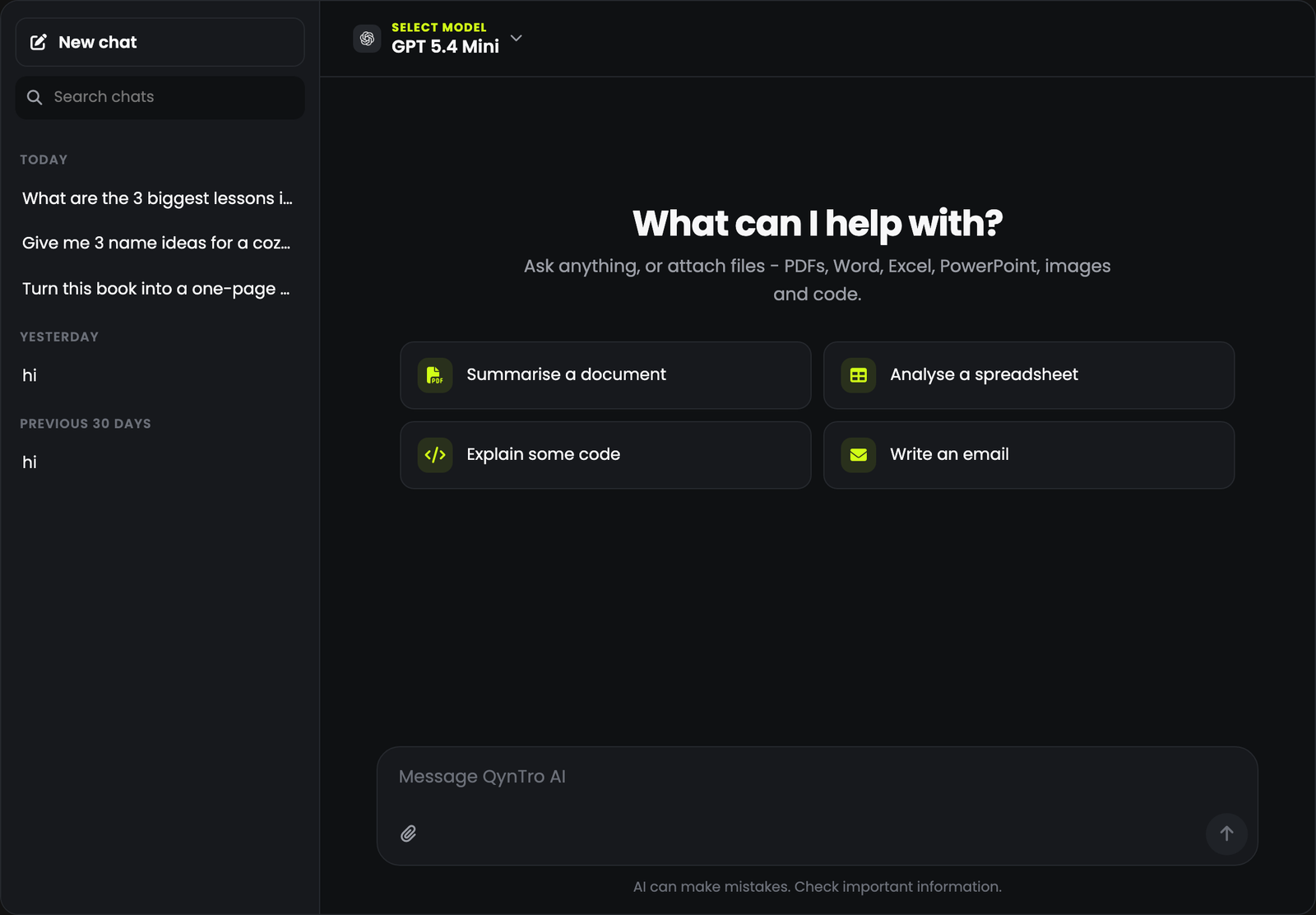
The model, top left
The lime SELECT MODEL label sits above the model you are using. Click it to change.
Your word balance, top right
What is left to spend on chat.
The chat list, far left
New chat, a search box, and your conversations grouped by date.
The message box, at the bottom
Type, or press the paperclip to attach files. On a computer Enter sends and Shift + Enter makes a new line; on a phone or tablet, use the send arrow.
03 Your first conversation
Three steps.
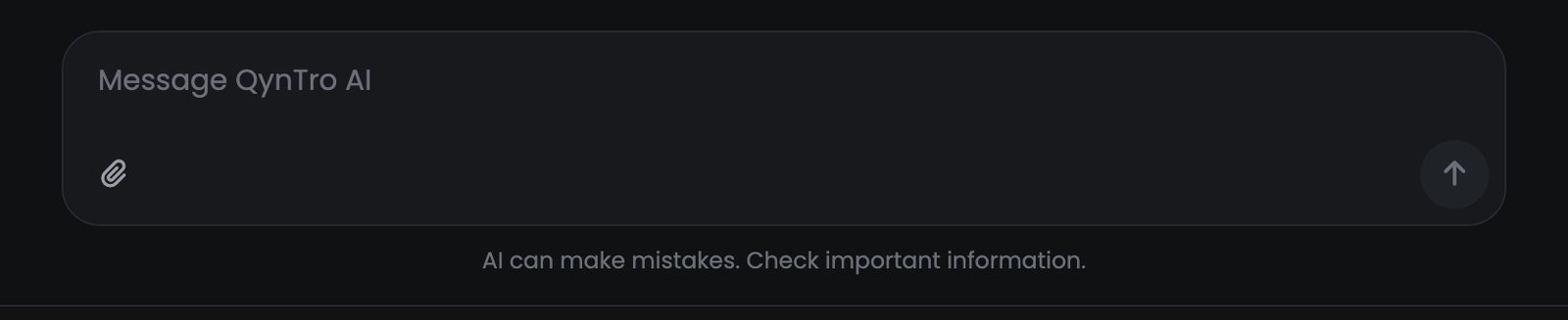
Type your question
Or press one of the four suggestions to start.
Send it
The reply streams in as it is written. A Stop button appears while it runs — press it if the answer is going the wrong way.
Keep going
Follow-up questions remember everything earlier in that chat, including the files you attached.
04 Choosing the model
Nine models, grouped by the company that makes them.
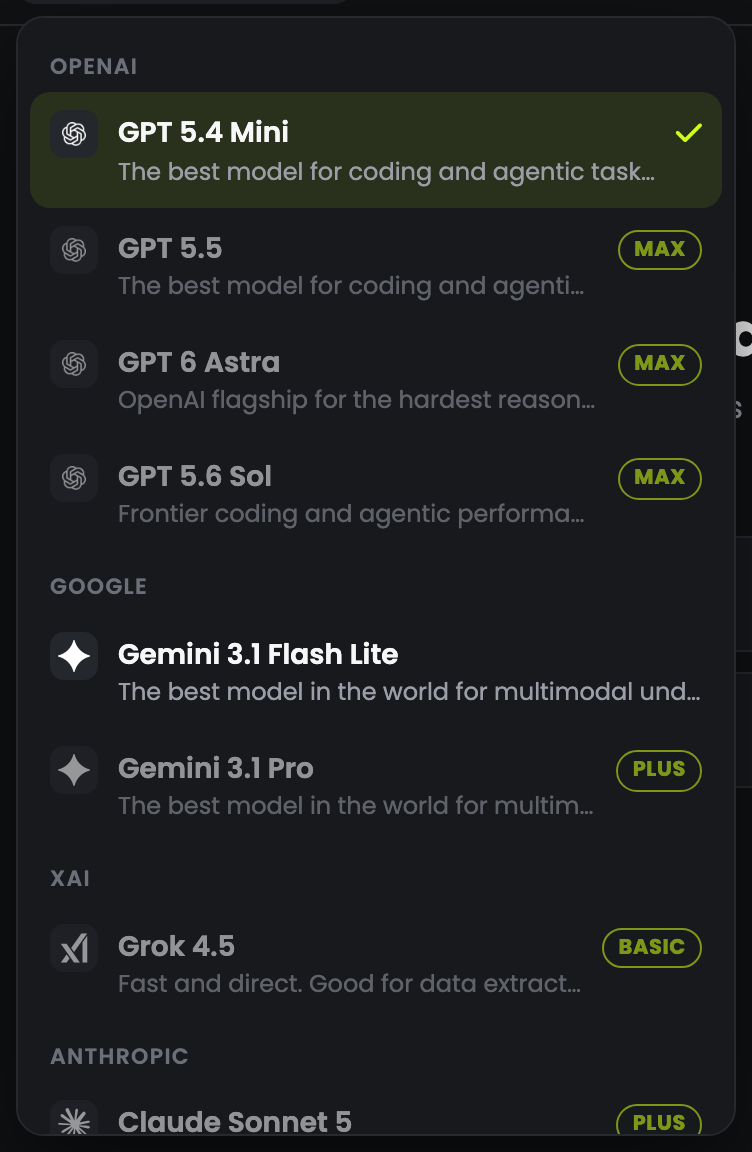
| Model | Good for | Plan |
|---|---|---|
| GPT 5.4 Mini | The everyday default. Fast, cheap, good at most things. | Any account |
| Gemini 3.1 Flash Lite | The cheapest, and strong at reading images and documents. | Any account |
| Grok 4.5 | Fast and direct. Data extraction and summarising. | BASIC |
| Gemini 3.1 Pro | A flagship for harder reasoning over documents and pictures. | PLUS |
| Claude Sonnet 5 | Excellent writing at a sensible price. Drafting and editing. | PLUS |
| GPT 5.5 | OpenAI's big model for hard problems. | MAX |
| Claude Opus 5 | The best writing quality. Long documents and careful reasoning. | MAX |
| GPT 6 Astra | OpenAI's flagship for the hardest reasoning and coding. | MAX |
| GPT 5.6 Sol | Frontier coding and agentic work at a lower cost. | MAX |
Start cheap, move up if needed
Ask on a small model first. If the answer is thin, switch and ask again in the same chat.
Switching keeps the conversation
The new model sees the whole chat, including attached files. It is a genuine second opinion on the same material.
Big models cost much more
Reach for MAX models for work that deserves them — not for "what's the weather".
05 Attaching files
Up to 10 files a message, 25 MB each, on a paid plan.

| Free accounts | Paid plans | |
|---|---|---|
| Files per message | 3 | 10 |
| Size per file | 5 MB | 25 MB |
| Type | What the chat does with it |
|---|---|
| Reads the text. A scanned PDF with no text is sent to the model as a picture of the pages. | |
| Word (.docx) | Reads the text. |
| Excel, CSV (.xlsx, .xls, .ods, .csv, .tsv) | Reads the sheets as text, so it can total, compare and explain them. |
| PowerPoint (.pptx) | Reads the text on the slides. |
| Images (PNG, JPG, WEBP, GIF) | The model looks at the picture. |
| Text and code | Markdown, JSON, XML, CSV, HTML, SQL, Python, JavaScript, PHP and many more. |
Drag and drop works
Drop files anywhere on the chat, or use the paperclip.
Ask a specific question
"What are the three biggest risks in this contract?" beats "summarise this".
Photos are cleaned before they are sent
Images are re-saved at a smaller size and their EXIF data, including any GPS location, is removed.
Your files are private
They are stored on a private bucket and only you can open them.
06 Getting files back
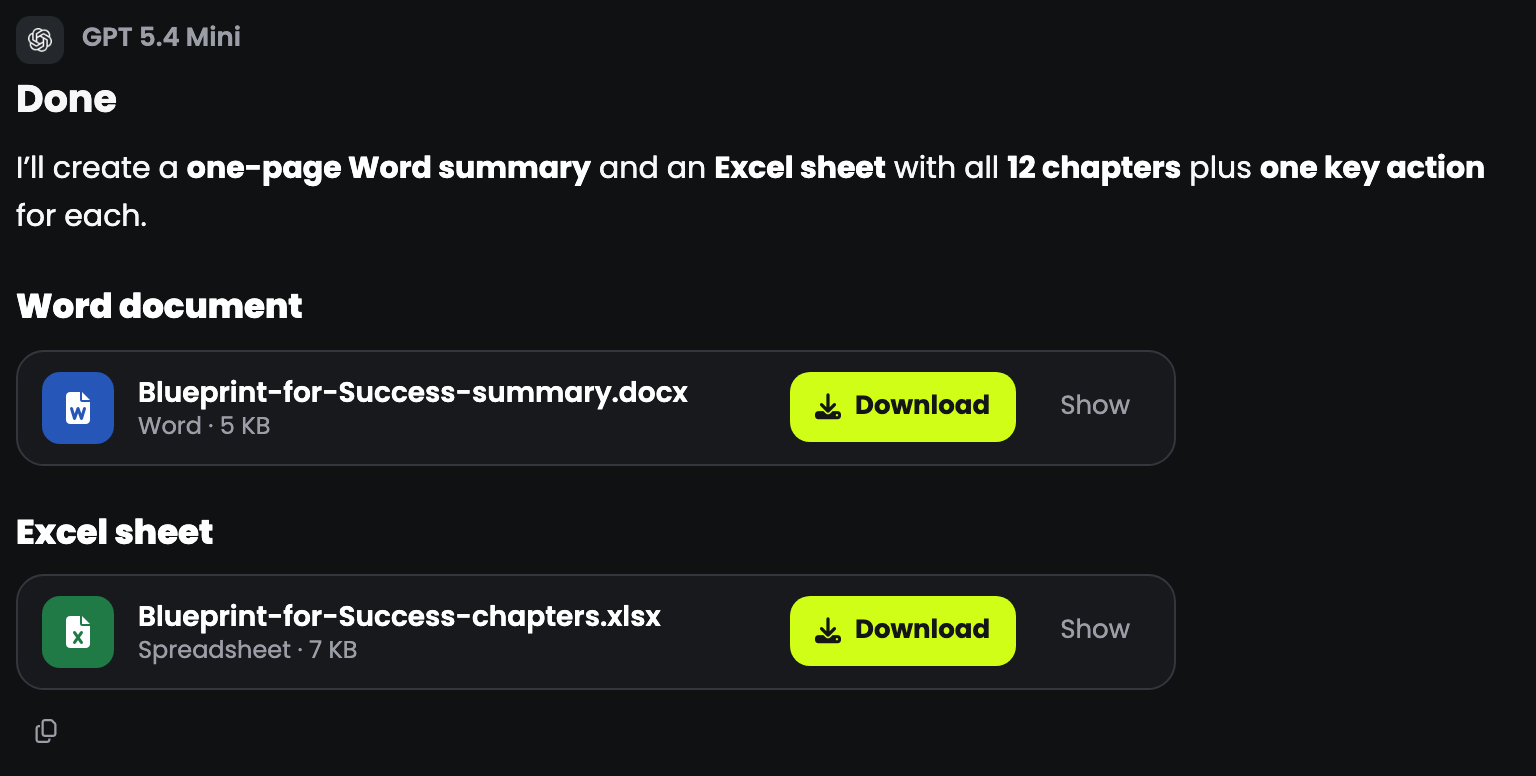
Ask for a document and you get a document, not a wall of text.
| Ask for | You get |
|---|---|
| "as a Word document" | A .docx with real headings, lists and paragraphs |
| "as a PDF" | A typeset .pdf |
| "as an Excel sheet" | An .xlsx with a header row, numbers as numbers, and a frozen top row |
| "as a CSV" | A .csv |
| "as a text file" / a script | A .txt, .md or a code file |
Say the format in your message
Name it plainly — "as a Word document", "as an Excel sheet". That is what decides the file type.
Up to five files per reply
Ask for more and the reply says which ones it made.
Download the ones you want to keep
Files are removed after a period based on your plan. An expired file shows greyed out with no download button.
07 Managing your chats
Everything is saved automatically.
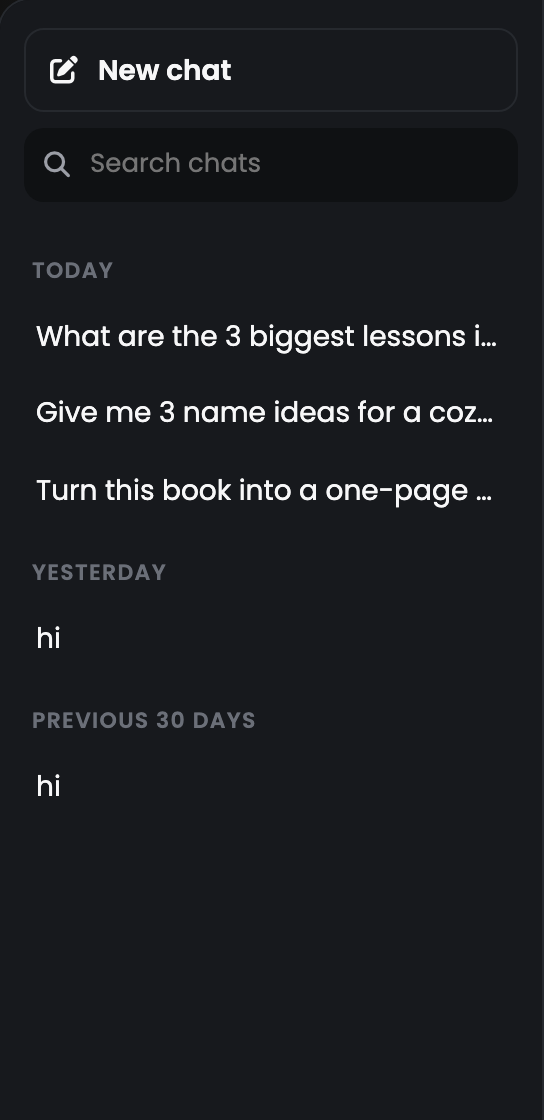
New chat
Starts a clean conversation. Worth doing when you change subject — it is cheaper, too (see below).
Search
Find an old conversation by what you asked.
Rename or delete
Hover a chat in the list for both buttons.
08 How chat is charged
In word credits, and the model you pick matters most.
You pay for words in and words out
Your message, the conversation so far, any attached files, and the reply.
The model sets the rate
The small models are many times cheaper than the MAX ones for exactly the same question.
Long chats cost more each turn
The conversation so far is sent every time. Attached pictures are re-sent for the next few turns, so a chat full of images gets expensive.
Start a new chat for a new subject
The single most effective way to keep chat cheap.
09 Prompting that works
Four habits that improve almost any answer.
Say who it is for
"Explain this to a customer who is not technical" gives a different, better answer than "explain this".
Say how long
"In three bullet points." "In one page." "In 50 words." Models follow length instructions well.
Give an example of what good looks like
Paste one paragraph in the style you want, and ask for more like it.
Correct it in the same chat
"Too formal — rewrite it the way you would say it out loud." Re-asking beats starting again.
Vague
"Write about our new product."
Specific
"Write a 120-word LinkedIn post announcing our new booking app for small salons. Friendly, no hype, end with a question."
10 Troubleshooting & FAQ
Where did File Chat, Web Chat and Vision go?
They are all this one chat now. Old links open it, and your old conversations are still in the list.
Can it search the web?
No. It answers from what the model knows and from the files you attach. For anything current, paste the text or attach the document.
A model is greyed out with a badge
That model needs the plan on the badge — BASIC, PLUS or MAX. The unbadged models work on any account.
My file would not attach
Check the size (5 MB free, 25 MB paid) and the count (3 free, 10 paid). Video and audio files are not supported.
The reply stopped part-way
Very long replies are cut off cleanly and say so. Ask it to continue, and it picks up where it stopped.
The file I was promised did not appear
If the reply was cut off mid-file, the card says "Cut off · not created". Ask for it again, or ask for a shorter version.
An old file will not download
Files expire with your plan's retention period. The reply text stays; the file has to be made again.
Can it make images?
No — this is text and files. Use AI Image for pictures.
Is my data private?
Your attachments are stored privately and are only readable by you. Photos have their EXIF data, including GPS, stripped before they are sent to a model.
How long can one message be?
Up to 30,000 characters, plus your attachments.