Training Guide 02
AI Image — a sentence in, a picture out
Describe what you want to see and AI Image makes it — product shots, illustrations, backgrounds, characters, concept art. This guide covers the part that separates a throwaway picture from a usable one: picking the right model, controlling the look, and knowing what each generation costs before you press the button.
01 Before you start
What this tool is, and what it isn't.
✨AI Image
Creates a brand-new picture from a written description. Nothing to upload.
🖼️AI Photo Studio
Works on a photo you already have — remove the background, erase objects, restyle it. That's Guide 03.
⚡Media credits
Every image costs media credits, and the exact cost is shown next to each model before you choose it.
Images you generate are yours to use, including commercially. Do keep in mind that asking for a real person by name, or a brand's logo, will usually either be refused or produce something you shouldn't publish.
02 The screen, explained
Prompt in the middle, controls down the right.
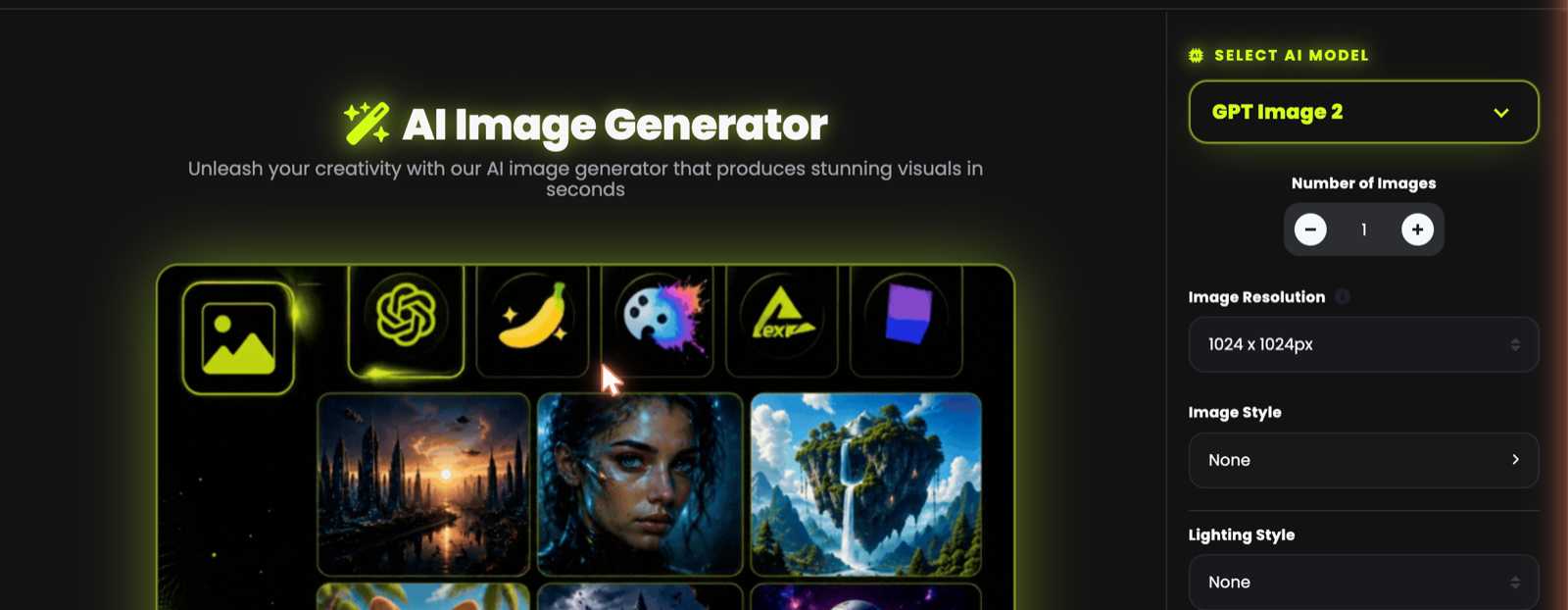
Right panel — the controls
SELECT AI MODEL at the top, then how many images, the resolution, and the look: style, lighting, medium, mood and more.
Middle — the prompt box and Generate
Your description goes here. Your media-credit balance sits just above it.
Below — your library
Everything you've ever generated, newest first.
03 Your first image
Three steps, about twenty seconds.

-
Describe what you want to see
Separate the parts with commas — the box itself tells you so.
a glass bottle of vitamin C serum on wet stone, water droplets, tropical leaves behind, golden hour light, soft shadows Leave the settings alone the first time
The defaults produce a good square image. You can refine after you see what you get.
Click Generate
A few seconds later your image appears, and it's saved to your library automatically.
04 Choosing an image model
Different engines, different looks — and very different prices.
Open SELECT AI MODEL and you'll find models from OpenAI, Stability (Stable Diffusion) and Black Forest Labs (FLUX), each with its credit cost shown right next to the name. Same prompt, different model, genuinely different picture — so it's worth trying two or three on an important image.
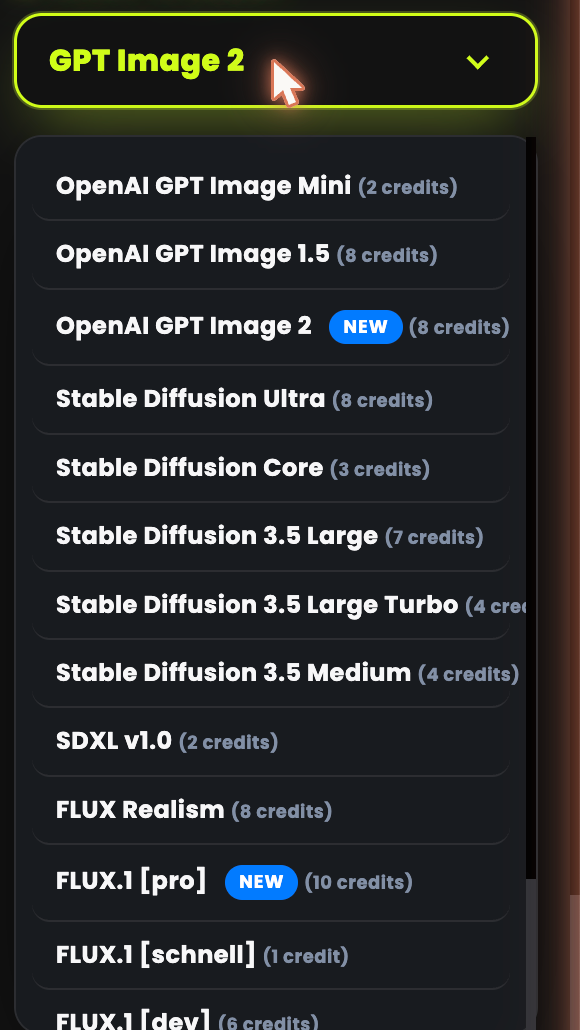
| When you want… | Try | Why |
|---|---|---|
| Cheap & fast | FLUX.1 [schnell] SDXL v1.0 · GPT Image Mini |
1–2 credits. Perfect for exploring ideas, testing a prompt, or making dozens of options before you commit. |
| Everyday quality | Stable Diffusion Core SD 3.5 Medium / Turbo · FLUX.1 [dev] |
3–6 credits. The sweet spot for social posts, blog images and backgrounds. |
| Best result | FLUX.1 [pro] · FLUX Realism GPT Image 2 · SD Ultra |
7–10 credits. For work you'll publish — product shots, hero images, anything a client sees. |
Test your prompt on a 1-credit model until the composition is right. Then switch to a premium model and run the same prompt once. You get the expensive quality only on the version you actually keep.
FLUX Realism is built for it. For illustration and graphic styles, the FLUX and Stable Diffusion families respond best to style keywords. For text rendered inside an image — a sign, a label, a poster — the GPT Image models are the most reliable.
05 What each image costs
No surprises — the number is on screen before you click.
- Cost is per image, per model. A 10-credit model generating 4 images costs 40 credits.
- Your balance is above the prompt box and updates as you work.
- Media credits are shared with Photo Studio, AI Video, Avatar and Music — but not with chat, which uses word credits.
- They renew every month with your plan.
Running a premium model on a prompt you haven't tested yet. If you're not sure what you want, explore on a cheap model first — the composition and framing carry over to the expensive one.
06 Number of images
Generate several at once and pick your favourite.
Use the − and + under Number of Images to produce more than one from a single prompt. Each one comes out differently, which is the fastest way to find the composition you want.
Explore with a cheap model and 4 images. Finish with a premium model and 1 image.
07 Resolution & shape
Choose the shape before you generate, not after.
Image Resolution sets both the size and the aspect ratio. Cropping a square image into a banner later throws away half your picture — so pick the shape you actually need up front.
| Use | Shape |
|---|---|
| Instagram post, product tile, avatar | Square — 1024 × 1024 |
| Reels, Stories, TikTok, phone wallpaper | Portrait — tall |
| Website hero, YouTube thumbnail, banner, slide | Landscape — wide |
08 Style, lighting and mood
The menus that turn an ordinary result into a deliberate one.
Below the resolution you'll find a stack of dropdowns, all set to None by default. These are the difference between "an AI picture" and something that looks art-directed — and you don't need to know any prompt jargon to use them.
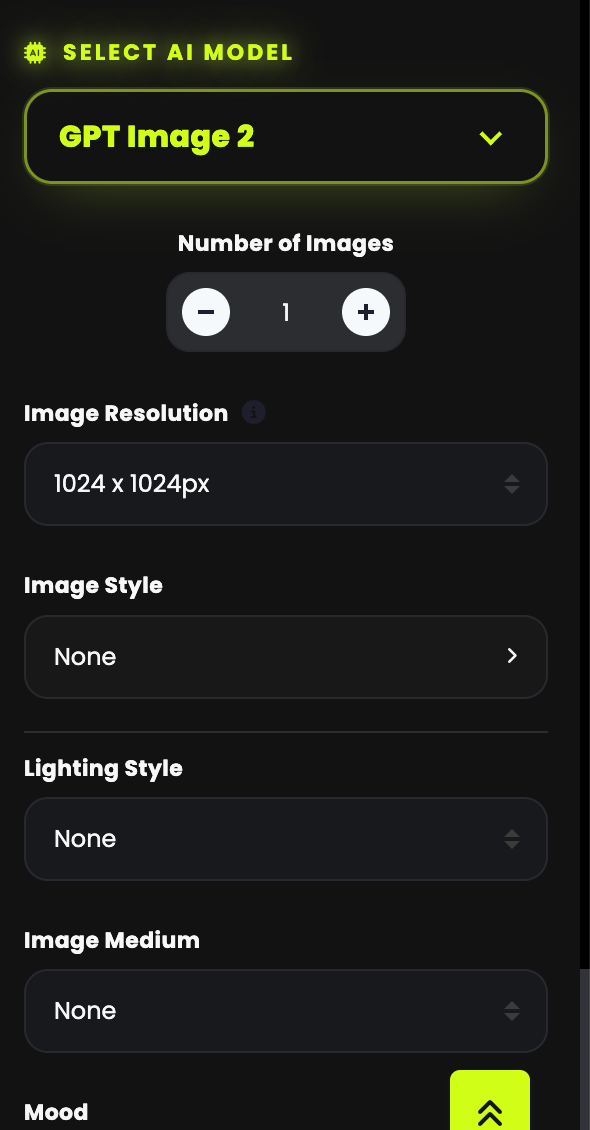
🎨Image Style
The overall look — photographic, illustrated, 3D, anime, and more.
💡Lighting Style
Golden hour, studio, neon, dramatic. The fastest way to change the whole mood of a shot.
🖌️Image Medium
Oil painting, watercolour, pencil, digital art, photograph.
🎭Mood
Warm, moody, energetic, calm — the emotional temperature.
Change one at a time and regenerate. If you set five at once and the result is wrong, you've no idea which one caused it. Two well-chosen settings usually beat five.
09 Writing prompts that work
Describe like a photographer, not like a search engine.
Work through five things, comma separated:
- Subject — what's in the picture
- Detail — material, colour, condition, clothing
- Setting — where it is, what's behind it
- Light — golden hour, studio softbox, neon, candlelit
- Framing — close-up, wide shot, top-down, shallow depth of field
Too vague
Specific — art-directed
Three habits worth having
Say what you want, not what you don't
"Clean empty background" works better than "no clutter".
Change one thing at a time
Same as the style menus. Small edits, regenerate, compare.
Keep the prompts that work
Save your best ones somewhere. A prompt that nailed one product shot will nail the next.
10 Your image library
Nothing you make is lost.
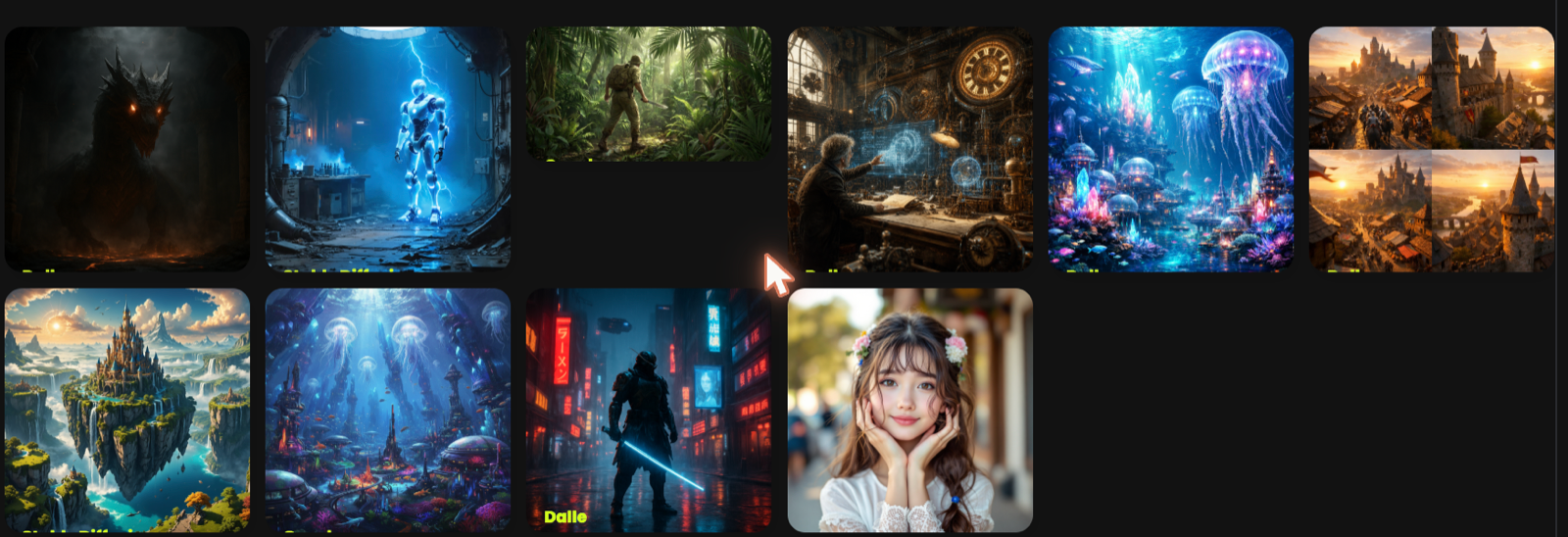
Scroll below the prompt box and you'll find everything you've generated, newest first. Open any image full size and download it at full resolution. The same collection lives under Documents → All Images in the sidebar.
Keep your own copy of anything you'll use commercially. It costs you nothing and means your finished work never depends on anything but your own files.
11 Troubleshooting & FAQ
The questions we're asked most.
The image isn't what I described
Add detail rather than rewriting from scratch, and change one thing at a time. If a model keeps missing the point, try a different one — they interpret prompts differently, and that's exactly why there's a choice.
The text inside my image is gibberish
Most image models are poor at spelling. Use a GPT Image model when words matter, keep the text very short, and put it in quotes in your prompt. For a guaranteed result, generate the image clean and add the text yourself afterwards.
Hands and faces look wrong
A known weakness across all image models. Frame tighter or wider so hands aren't the focus, try a premium model, or generate a few options and pick the good one.
My credits went down faster than expected
Cost is per image, so the number of images multiplies the model's price. Four images on a 10-credit model is 40 credits. Explore on the cheap models and finish on an expensive one.
Can I use these images commercially?
Yes — images you generate are yours to use. Avoid prompting for real people by name or for brand logos, and don't publish anything that imitates an identifiable person.
A model in this guide isn't in my list
The model list depends on your plan. It also grows: whenever a new image model is released, we add it — at no extra cost.