Training Guide 04
AI Video — from a sentence, or from a photo
AI Video turns a written description into a moving clip, or brings a still photo to life. Eleven video engines — Google Veo, Kling, Seedance, Luma, MiniMax and more — all in one place, with the credit cost shown before you commit. This is the most expensive tool in QynTro, so the guide spends real time on how not to waste a generation.
01 Two ways to make a video
Expand Ai Video in the sidebar and you'll find both.
✍️Text To Video
Describe a scene and the AI films it. Nothing to upload. Best when you need a shot that doesn't exist yet.
🖼️Image To Video
Upload a still and describe how it should move. Best when the subject already exists — your product, your photo, an image you made in AI Image.
If you care what the subject looks like, use Image To Video. Generating your product from a text description will invent a product; animating a photo of it keeps it exactly right.
02 The screen, explained
Form on the left, your finished videos on the right.
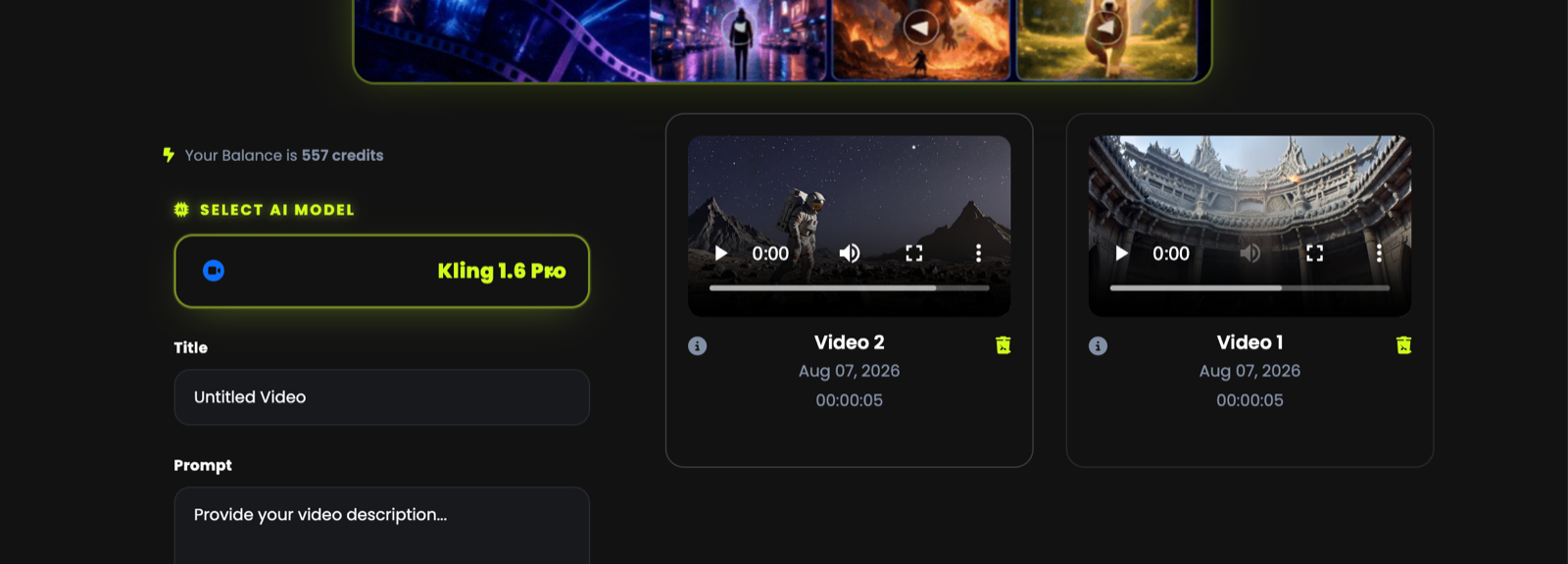
Balance, then SELECT AI MODEL
Your media credits are shown at the top of the form; the model comes first because it changes every field below it.
Title and Prompt
The title is for you — it labels the clip in your results. The prompt is the shot.
Settings, then the price
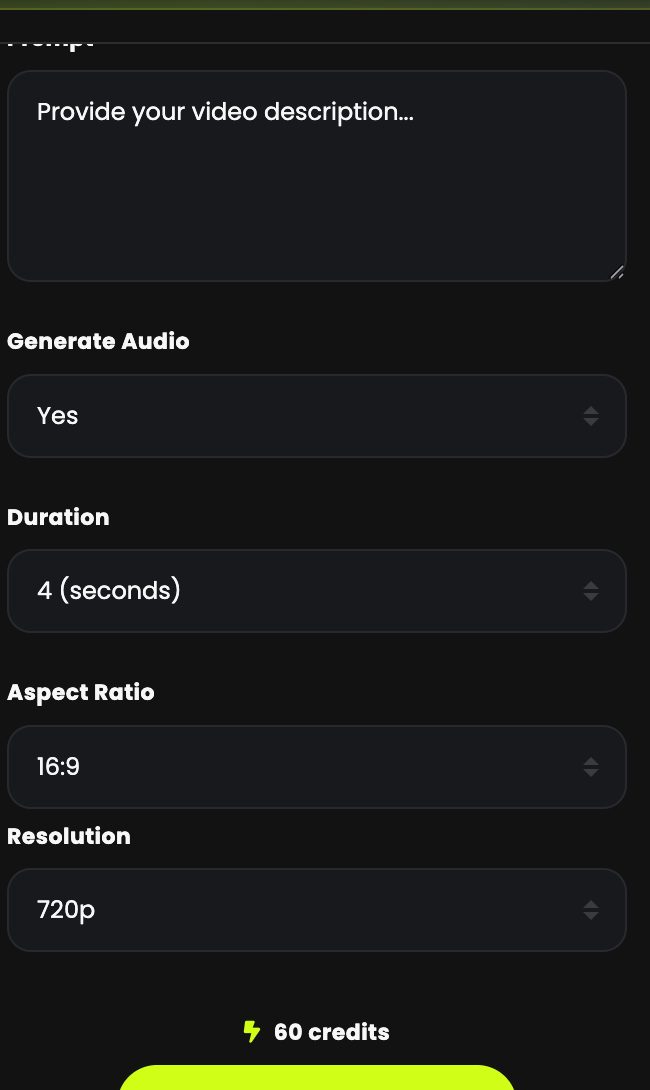
Duration, aspect ratio, and — depending on the model — audio and resolution. The credit cost appears just above Generate.
03 Your first video
Five fields and a button.
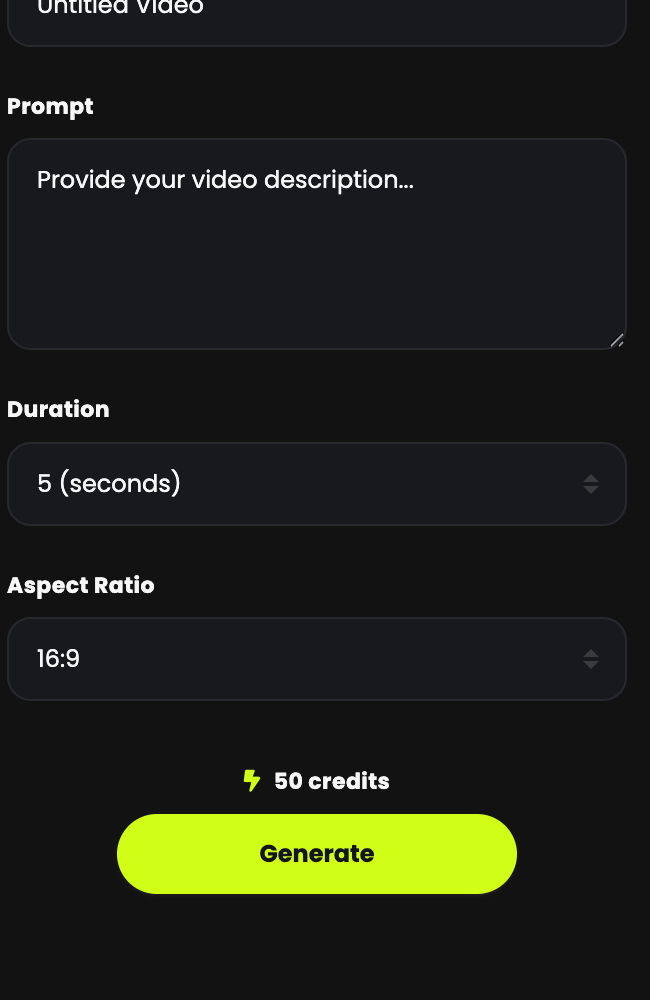
Name it
"Serum hero shot" beats "Untitled Video" when you have twenty clips.
-
Describe the shot — as a camera operator would
slow cinematic push in on a glass serum bottle on wet stone, tropical leaves behind, golden hour light, shallow depth of field Set duration and aspect ratio
Vertical for Reels and Shorts, 16:9 for YouTube and websites.
Check the credit cost, then Generate
Rendering takes a few minutes. You don't have to wait on the page.
04 The video models
Eleven engines, and they are not interchangeable.
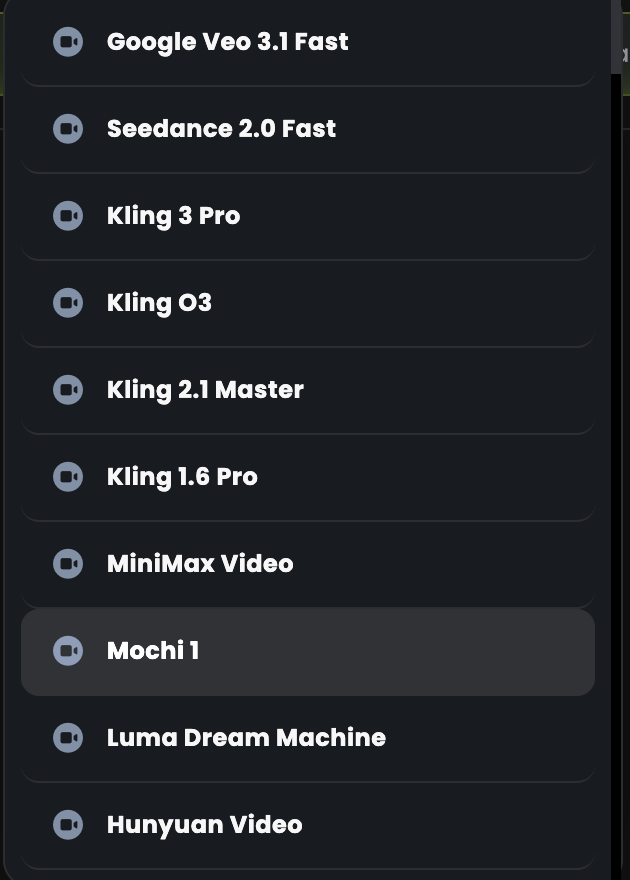
| Family | Models | Known for |
|---|---|---|
| Google Veo | Veo 3.1 Veo 3.1 Fast |
The most cinematic results, and the only ones that can generate sound with the video. Fast is the cheaper, quicker sibling. |
| Kling | Kling 3 Pro · Kling O3 Kling 2.1 Master · Kling 1.6 Pro |
Strong, reliable motion and good with people. The widest range of quality levels, so there's usually a Kling that fits the budget. |
| Seedance | Seedance 2.0 Fast | Quick turnaround for social clips. |
| Others | MiniMax Video · Mochi 1 Luma Dream Machine · Hunyuan Video |
Each has its own character. Worth testing on a short clip when you want a different look. |
This surprises people. Pick a Veo model and two new fields appear — Generate Audio and Resolution — and the duration options change too. Always re-check the settings after switching models.
Video is the fastest-moving area in AI. When a new engine launches we add it — that's what the banner at the top of your dashboard announces. Nothing to install, no extra cost.
05 What a video costs
Read the number above the button. Every time.
Video is the most credit-hungry tool in QynTro — a single clip can cost more than a dozen images. The exact figure sits directly above Generate and updates as you change the model and the settings. Two real examples from the same account:
| Model | Settings | Cost |
|---|---|---|
| Kling 1.6 Pro | 5 seconds, 16:9 | 50 credits |
| Google Veo 3.1 Fast | 4 seconds, 16:9, 720p, audio on | 60 credits |
1. Write the prompt carefully before you generate — you can't nudge a video the way you
can re-roll a cheap image.
2. Test an idea at the shortest duration, then re-run the winner longer.
3. Check the number above the button every single time. It changes when you change the model.
06 Duration, aspect ratio and audio
Decide these before you generate — none of them can be fixed afterwards.
-
Duration
Usually 4–10 seconds depending on the model. Longer costs more and gives the AI more chances to drift. Several short clips cut together almost always beat one long one.
-
Aspect Ratio
16:9 for YouTube, websites and presentations. 9:16 for Reels, Shorts and TikTok. Cropping a wide clip to vertical later loses half your frame.
-
Generate Audio (Veo only)
Set to Yes and the model creates matching sound with the picture. Set it to No if you're adding your own voiceover or music — you'll be replacing the audio anyway.
-
Resolution (some models)
720p is plenty for social. Go higher only when the clip will be shown large.
07 Image to Video
The one to use when the subject has to be exactly right.
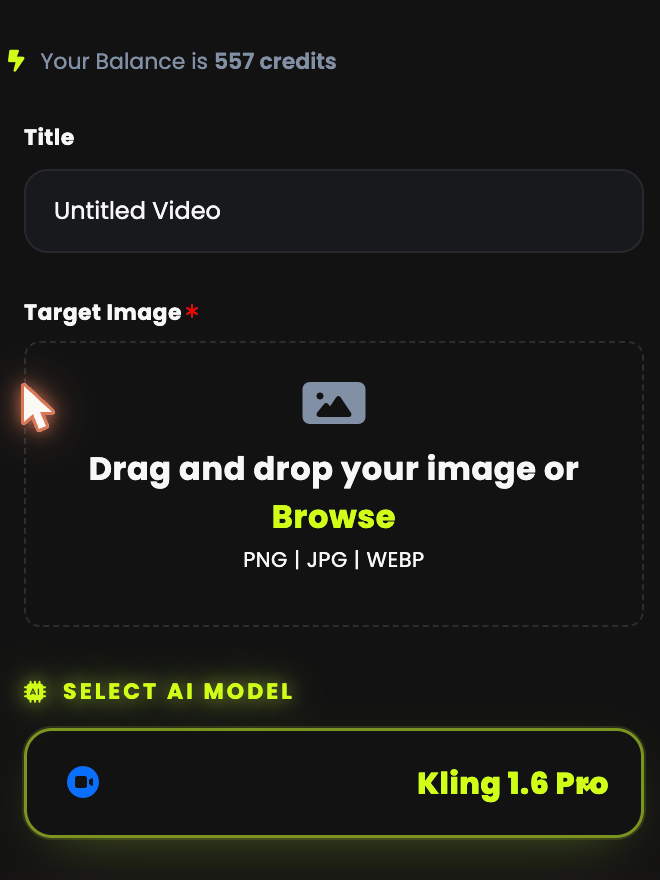
Upload your still
PNG, JPG or WEBP. A product photo, a headshot, or anything you made in AI Image or Photo Studio.
Pick a model
Same list, same pricing.
-
Describe the motion, not the scene
The picture already exists. Your prompt's job is to say what moves.
slow zoom in, water droplets running down the bottle, leaves swaying gently in the breeze
AI Image or Photo Studio → make the perfect still. Image To Video → make it move. AI Voiceover → add narration. AI Music Studio → add a soundtrack. Four tools, one finished ad, no camera.
08 Prompting for motion
Write like a director: one shot, one movement.
- Camera move — slow push in, pull back, pan left, orbit, static shot
- Subject motion — what actually moves, and how fast
- Setting — where it is, what's behind it
- Light — golden hour, neon, studio, overcast
- Feel — cinematic, handheld, dreamlike, documentary
Too much — it'll drift
One shot, one movement
Asking for a whole story in one clip. These models produce one shot of a few seconds. A sequence of events becomes a mess. Want a story? Generate three separate shots and cut them together.
09 Waiting, and your results
Press Generate and walk away.
Rendering takes a few minutes — longer for premium models and longer clips. You don't need to sit and watch. Your finished videos appear on the right of the page, each with its title, date and length, playable right there, with an info button and a delete button.
Keep your own copy of any clip that matters. It costs nothing and means your finished work never depends on anything but your own files.
10 Troubleshooting & FAQ
The questions we're asked most.
My video is still processing — did it fail?
Almost certainly not. Video takes minutes, not seconds. Leave the page, come back later, and it'll be in your results.
The generation failed. Have I lost the credits?
No. When a render fails, the credits are returned to your monthly balance automatically, and the failure card tells you what went wrong. If the message points at the prompt, adjust it; if it was a timeout, simply try again.
The subject changes or warps halfway through
Classic sign of asking for too much motion. Shorten the duration, simplify to a single camera move, and try a stronger model. For a subject that must stay exact, use Image To Video instead of describing it in text.
There's no sound on my video
Only the Veo models generate audio, and only when Generate Audio is set to Yes. For every other model, add sound afterwards with AI Voiceover or AI Music Studio.
Can I make a one-minute video?
Not in a single generation — models cap at a few seconds per clip. Generate several shots and edit them together. That's how the clips you admire online are made too.
Why did the price change when I picked a different model?
Each engine costs a different amount to run, and the settings it offers differ too. The number above Generate always shows what the current combination will cost.