Training Guide 06
AI Presentation Maker — a deck from one sentence
Describe your topic, pick a style, and get a finished slide deck with proper layouts and generated visuals — usually in under a minute. Then download it as a real presentation file and edit anything you like. This guide covers the settings that decide whether the deck arrives client-ready or generic.
01 Before you start
One screen, one box, five settings.
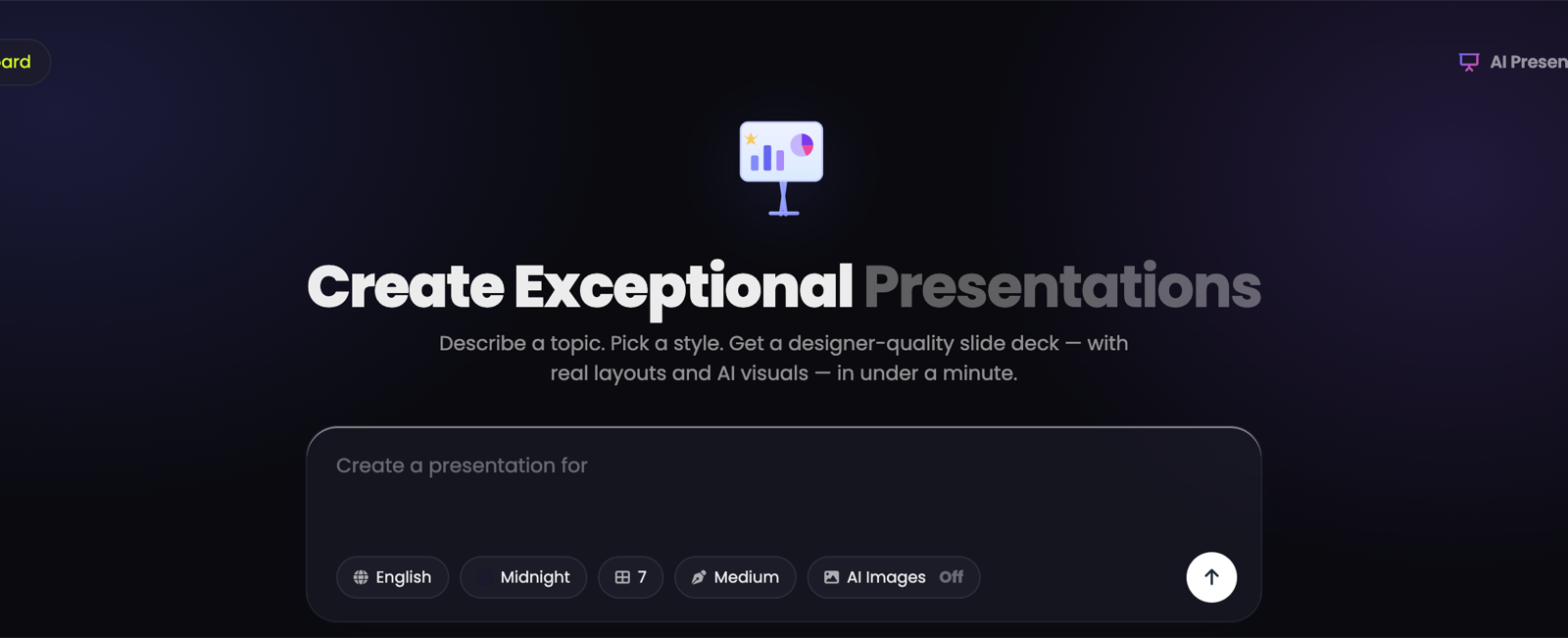
Presentation Maker opens full screen — no sidebar. Use the ← Dashboard button at the top left to get back. Everything happens in the box in the middle: your topic goes in, and the row of chips beneath it controls language, look, length and visuals.
02 Your first deck
Four steps, then wait about a minute.
-
Describe the deck
a pitch deck for a new vitamin C face serum brand — the problem, the product, the market, and why now Pick a theme
Click the theme chip and choose one that suits the audience. This decides the entire visual style.
Set the slide count and text density
The numbered chip is how many slides; the one after it is how much text goes on each.
Turn AI Images on, then press the arrow
Off by default — and it's the difference between plain slides and a designed deck.
AI Images starts Off. Switch it On and the deck comes back with original visuals generated to match your content. It's the single biggest quality difference available on this screen.
03 Writing the topic
One sentence works. Two sentences work better.
The box is prompted with "Create a presentation for…", so continue that sentence naturally. If you also list the sections you want, you'll get them — that's the fastest way to control the structure without touching Advanced Options.
Generic in, generic out
Specific — with structure
- Say who the audience is — investors, customers, students, your team
- List the sections you want, in order
- Mention the outcome you want — to persuade, to teach, to report
04 Themes
Fifteen designs, previewed before you choose.
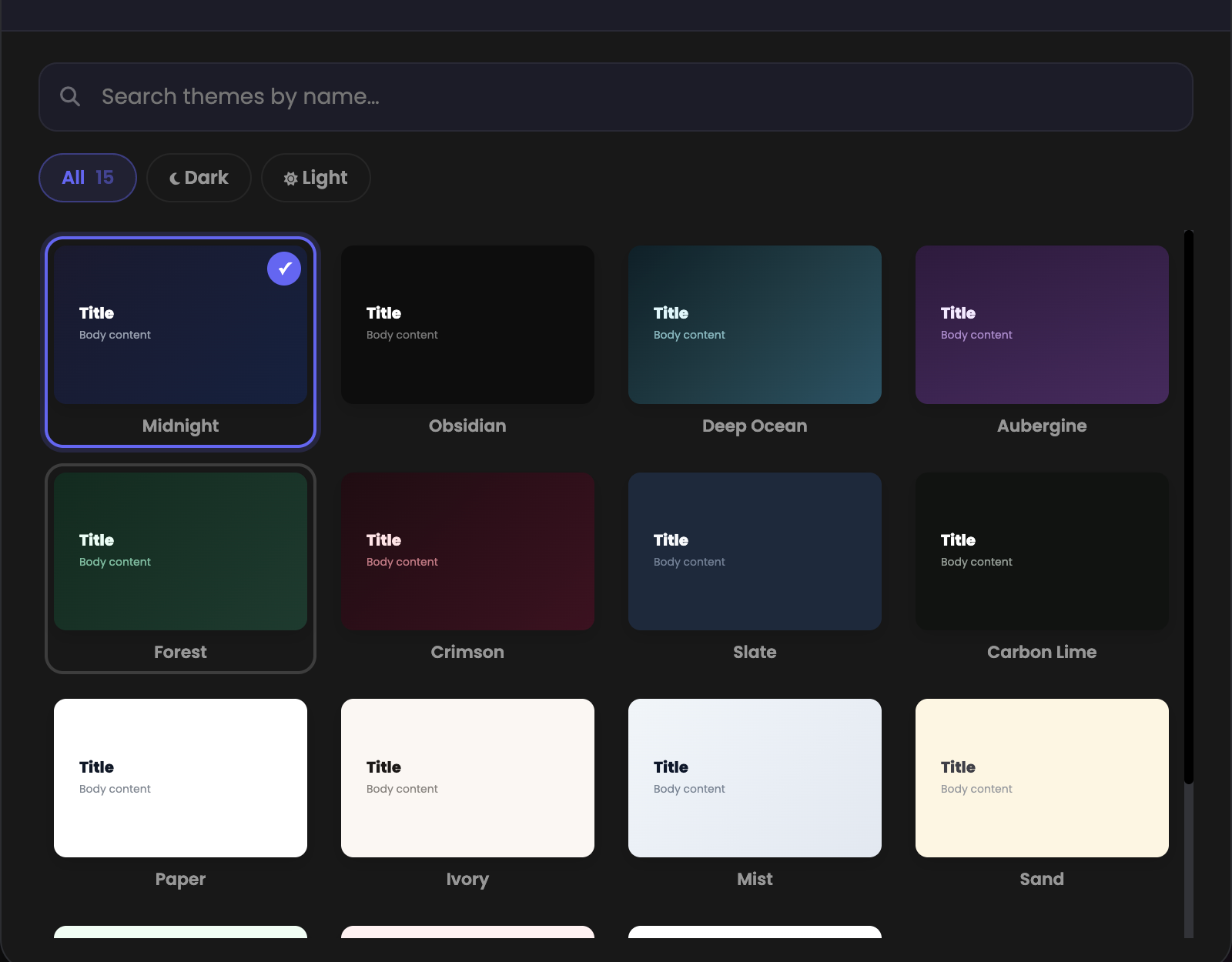
Click the theme chip and you get all fifteen with live previews — Midnight, Obsidian, Deep Ocean, Aubergine, Forest, Crimson, Slate, Carbon Lime, Paper, Ivory, Mist, Sand and more. The Dark and Light filters narrow the list instantly.
| Audience | Reach for | Why |
|---|---|---|
| Investors, tech, product launches | Midnight · Obsidian · Deep Ocean | Dark themes read as modern and confident on a projector or a screen share. |
| Corporate, finance, reports | Slate · Paper · Ivory | Restrained and easy to read — and they print properly. |
| Creative, lifestyle, brand work | Aubergine · Crimson · Forest · Sand | More colour personality without looking like a template. |
Presenting on a big screen in a dim room? Dark. Sending a PDF people will read on a laptop, or printing handouts? Light. That single question answers the theme choice most of the time.
05 Slides, text density and images
The three chips that shape the deck itself.
| Chip | What it controls | Advice |
|---|---|---|
| English | The language of the deck | Build the same deck in any language — useful for multi-market pitches. |
| Theme | The whole visual style | See above. The highest-impact choice on the screen. |
| 7 | How many slides | 7–10 for a pitch, 12–15 for training, 5 for a quick update. More slides means more thinly spread content. |
| Medium | How much text per slide | Short if you'll be speaking over it, Medium for most things, Detailed if people will read it alone. |
| AI Images | Generated visuals on the slides | Turn it On. Off is the default and it shows. |
If you'll be presenting live, choose Short — slides full of text compete with you. If the deck gets emailed and read without you, choose Detailed, because nobody is there to fill the gaps.
06 Advanced Options
Five more controls, for when the default deck isn't quite yours.
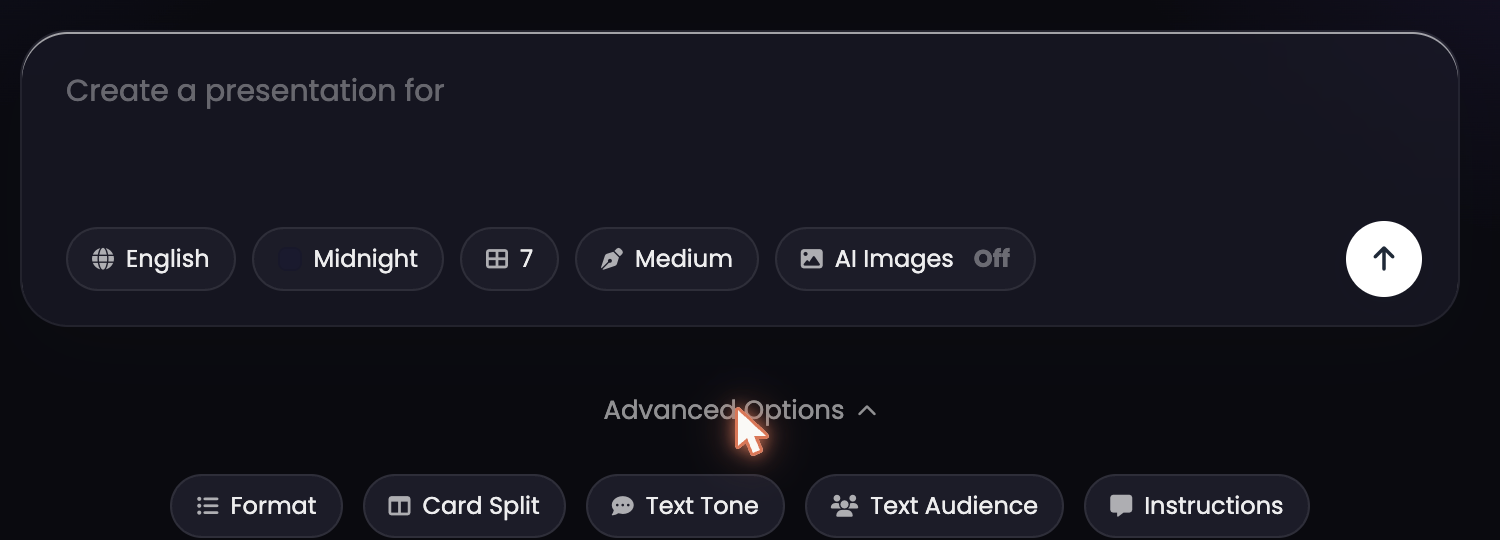
Click Advanced Options under the box to reveal them.
📐Format
The overall shape and structure of the presentation.
🔀Card Split
How content is divided across slides — how much lands on each one.
💬Text Tone
The voice of the writing: formal, conversational, persuasive.
👥Text Audience
Who's being addressed. Changes vocabulary and how much is explained.
📝Instructions
Free-text notes for anything the other settings don't cover — "mention our 2-week results claim on every product slide".
Set it to investors and the same topic comes back with different emphasis than customers or students — less feature detail, more market and traction. It's a faster fix than rewriting your topic sentence.
07 My Presentations
Preview, download or delete — and it's a real file.
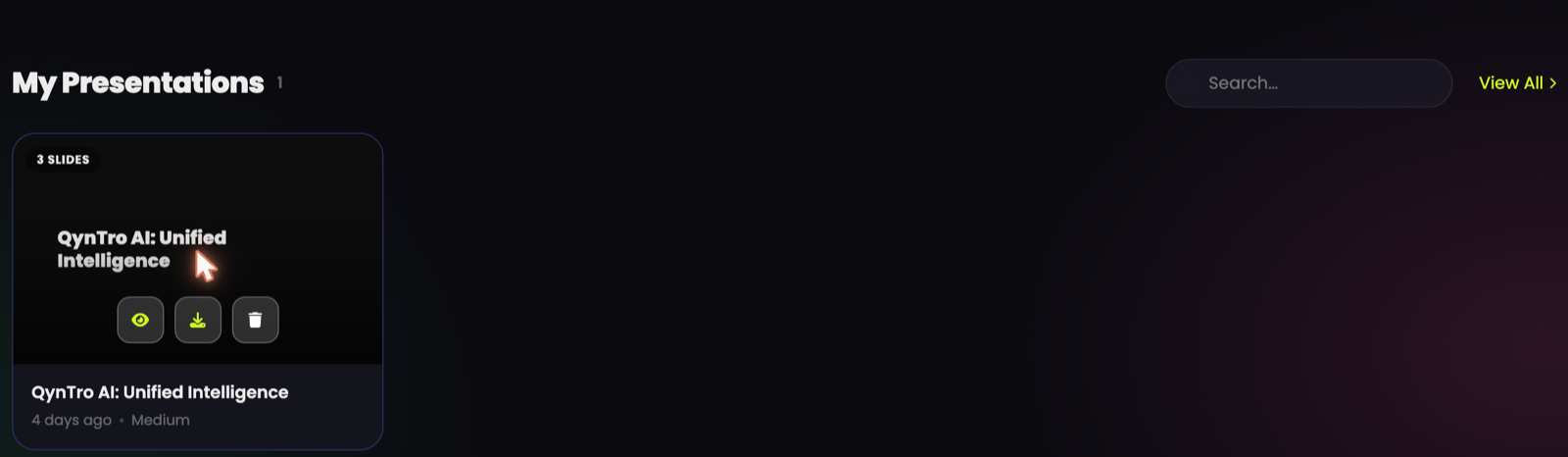
Every deck you generate is saved below the box, labelled with its slide count, title, date and text density. Hover one and three buttons appear:
Preview (eye)
Read through the slides in place before you commit to anything.
Download (arrow)
Get the deck as a presentation file you can open and edit in PowerPoint, Keynote or Google Slides.
Delete (bin)
Clear out the experiments so the good ones are easy to find.
Treat the generated deck as a very good first draft. Download it, then fix the two or three slides that matter most in your usual software. That's still an hour's work saved on every deck.
Once you have more than a few, use Search or View All to find an older one.
08 Troubleshooting & FAQ
The questions we're asked most.
My slides have no images
AI Images is Off by default. Switch it On and generate again — this is the most common reason a deck looks plain.
Can I edit the deck after it's made?
Yes. Download it and open it in PowerPoint, Keynote or Google Slides — it's a normal presentation file, so every slide, word and image is editable.
There's too much text on each slide
Change the density chip from Medium to Short and regenerate. If a specific slide is the problem, it's quicker to trim it after downloading.
The content is generic
Your topic sentence is doing all the work — make it specific, name the audience, and list the sections you want. Then use Text Audience and Instructions under Advanced Options to add the details only you know.
Can I make the same deck in another language?
Yes — change the language chip and generate again. Same topic, same theme, new language.
How many slides should I ask for?
Seven to ten for a pitch, twelve to fifteen for training material, five for a status update. Asking for thirty slides on a small topic spreads the content thin rather than adding substance.