Training Guide 07
AI Music Studio — describe a track, hear it
Type the music you're imagining and AI Music Studio writes and performs it — background beds for video, podcast intros, ad music, or full songs with vocals. When you need more control than a single prompt gives, Composition Plan lets you build the track section by section, and the Mixer lets you layer the parts.
01 Before you start
Three tabs across the top, one big box in the middle.
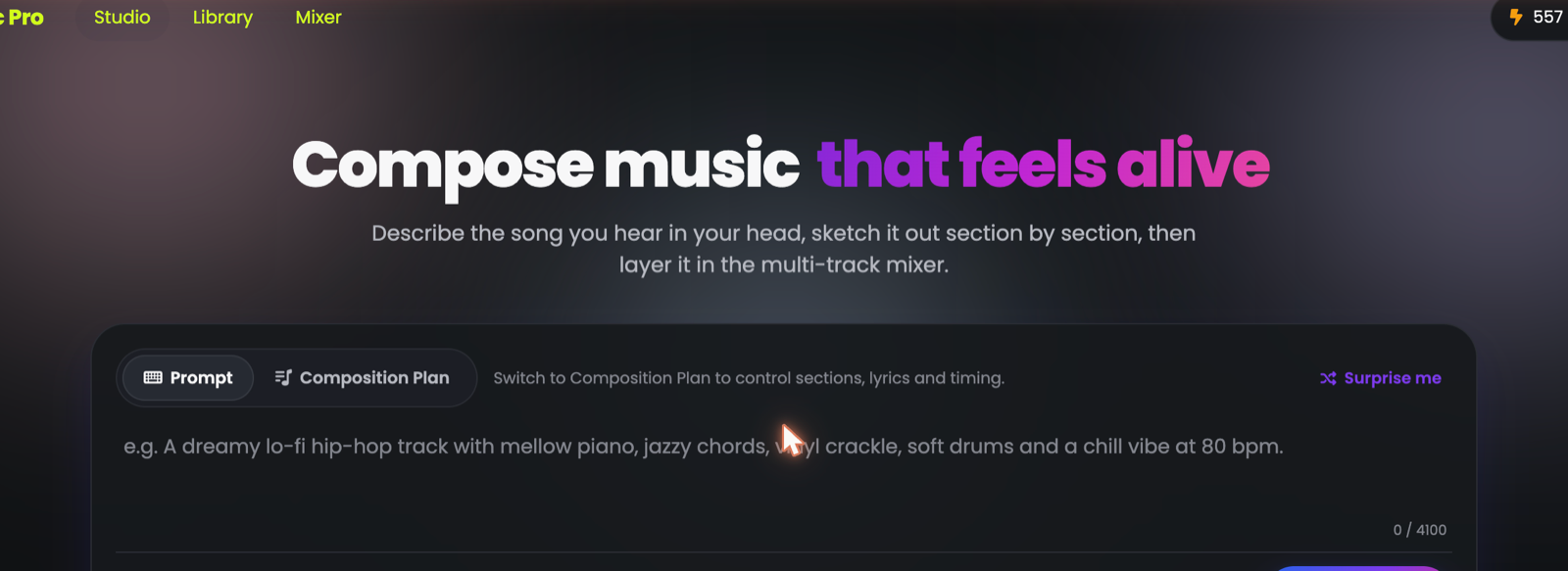
🎛️Studio
Where you describe and generate tracks. You'll live here.
📚Library
Every track you've made — search, favourite, archive, download.
🎚️Mixer
Layer tracks together into a finished piece.
Music Studio opens full screen. The × at the top right returns you to the dashboard.
02 Your first track
Describe, set two dials, generate.
-
Describe the music
upbeat modern pop instrumental for a skincare ad, soft piano, light percussion, warm and uplifting, 100 bpmNo idea where to start? Press Surprise me and it writes a prompt for you — a good way to see what a strong prompt looks like.
Set the length
The first chip. Keep it short while you're experimenting.
Pick a Vibe and a Mood
These two do more work than anything else on the screen.
Press Generate
Your track appears under Recent tracks and plays in the bar at the bottom of the screen.
03 Writing the prompt
Describe it the way a musician would — you have up to 4,100 characters, but you won't need them.
The example in the box is a good model: "A dreamy lo-fi hip-hop track with mellow piano, jazzy chords, vinyl crackle, soft drums and a chill vibe at 80 bpm." Notice what it contains:
- Genre — lo-fi hip-hop, cinematic, orchestral, house
- Instruments — the specific sounds you want to hear
- Texture — vinyl crackle, warm tape, clean digital, live room
- Feel — chill, driving, tense, uplifting
- Tempo — a bpm number, or "slow" / "mid-tempo" / "fast"
Too vague
Specific — usable
"No vocals", "no drums", "no heavy bass" all work. For background music under a voiceover this matters — busy tracks fight the voice.
04 Length, vibe, mood and vocals
The control row under the prompt box.
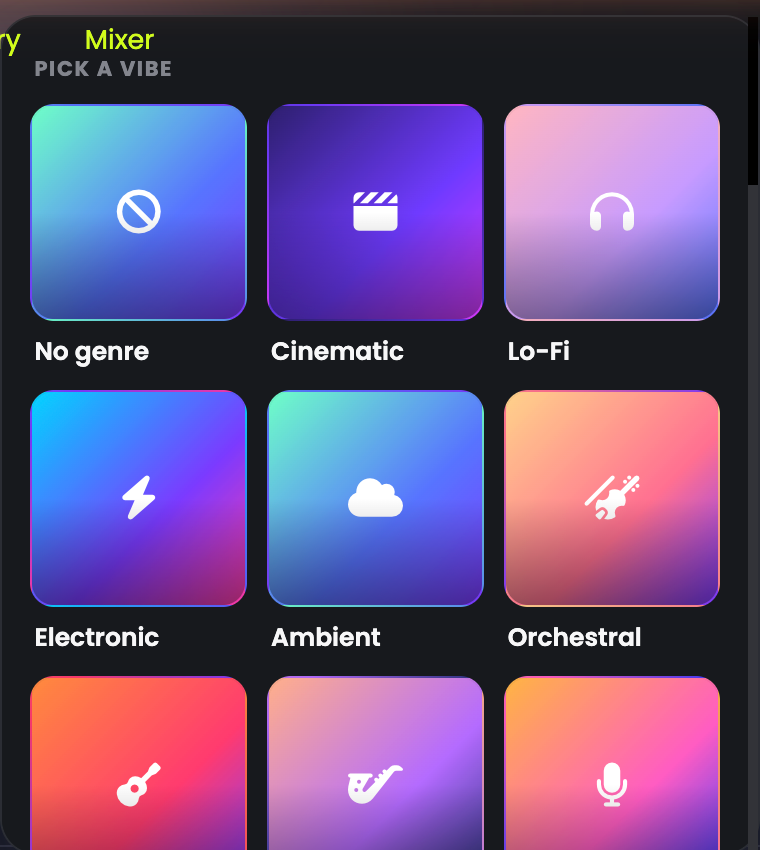
| Control | What it does | Advice |
|---|---|---|
| 60s | Track length | Test ideas short, then regenerate the winner longer. Long tracks cost more and take longer. |
| Vibe | The genre | Tiles with pictures — No genre, Cinematic, Lo-Fi, Electronic, Ambient, Orchestral and more. Leave it on No genre if your prompt already names the style. |
| Mood | Emotional colour | The fastest way to change a track's feel without rewriting the prompt. |
| Vocals | Sung vocals on or off | Off for anything that sits under speech. On when the song is the content. |
| Advanced | Finer control | Ignore it until a specific detail keeps coming out wrong. |
If the track plays under a voiceover, turn Vocals off. Two voices competing is the most common reason a good track ruins a good video.
05 Composition Plan
Build the song section by section, with your own lyrics and timing.
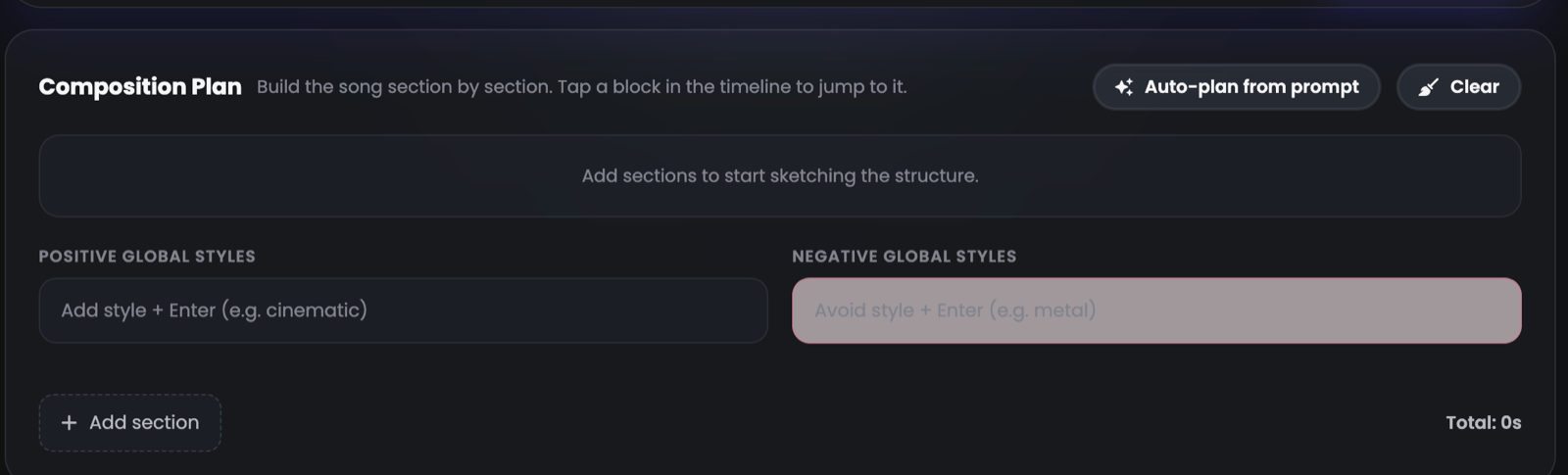
Switch from Prompt to Composition Plan at the top of the box. Instead of describing one track, you sketch its structure — intro, verse, chorus, outro — and control how long each part runs.
-
Let it draft the structure for you
Auto-plan from prompt takes what you already typed and turns it into sections automatically. Much faster than building from scratch, and you can edit everything afterwards.
-
Or press + Add section
Add each part yourself. The running total is shown on the right, so you can build a track to an exact length — genuinely useful when the music has to fit a video.
-
Set global styles
Positive global styles applies across every section — "cinematic", "warm tape". Negative global styles keeps things out — "metal", "distorted". Type a word and press Enter.
Use plain Prompt for background music — you just need a good 60 seconds. Use Composition Plan when the music has to hit marks: a build that lands on your logo reveal, a chorus at the 30-second point, or a song with your own lyrics.
06 The Mixer
Layer separate tracks into one finished piece.
The Mixer tab is a multi-track workspace: rather than accepting one generated take, you can stack parts together and balance them. If you've ever wanted the drums from one attempt and the melody from another, this is where that happens.
For background music, one good generation is the whole job. The Mixer is there for when you're producing something more considered — and it's what separates this from a one-click novelty generator.
07 Your music library
Search, favourite, archive, download.
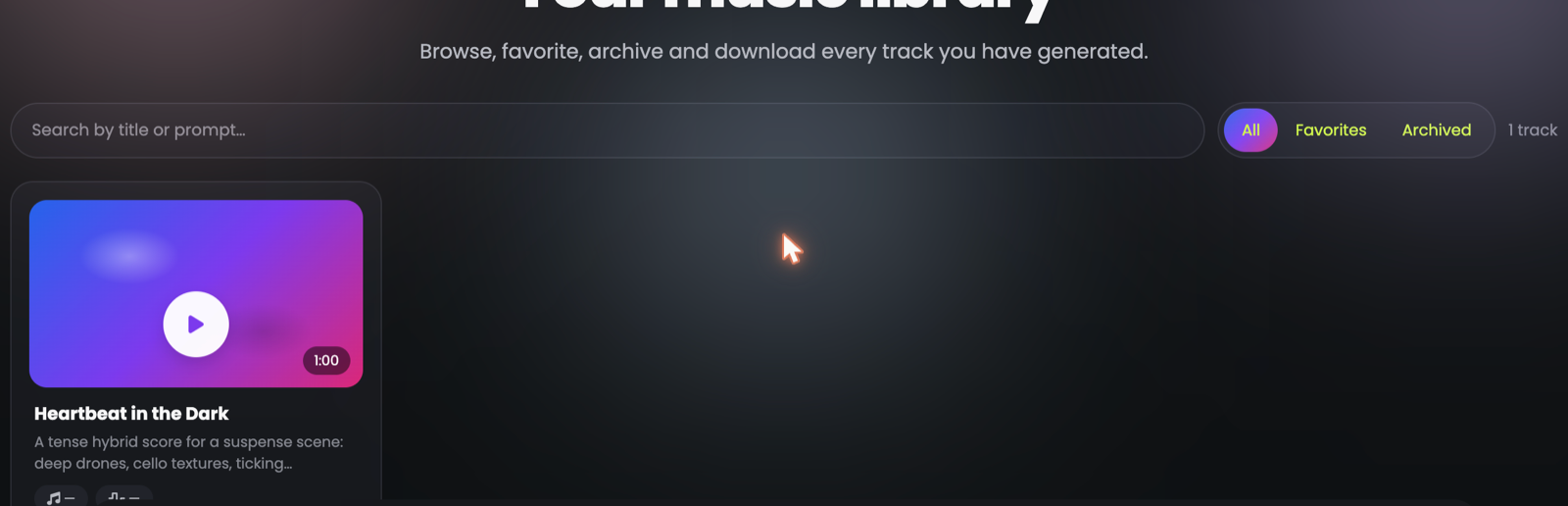
Each track keeps its title, its prompt and its length, and plays right in the card. Filter to All, Favorites or Archived, and search by title or by the words in the prompt.
- Star the good ones. A prompt that produced a great track is worth finding again.
- Archive rather than delete when you're unsure — it clears the list without losing the track.
- Download what you'll use. Keep your own copy of anything that goes into a published video.
Six months on you won't remember what you called a track — but you will remember it was the "cinematic tense strings" one. Search finds it from the prompt text.
08 What to use it for
Where generated music earns its place.
🎬Video backing
Under your AI Video clips or avatar videos. Vocals off, mood matched to the message.
🎙️Podcast intros
A 15–30 second signature that's yours alone and needs no licence.
📱Reels and Shorts
Original audio, so no copyright claims and no muted uploads.
📢Ad music
Built to length with Composition Plan, so it lands exactly on your call to action.
AI Video or Avatar → the picture. AI Voiceover → the narration. Music Studio → the bed underneath. Three tools, one finished piece, nothing licensed from anyone.
09 Troubleshooting & FAQ
The questions we're asked most.
The track doesn't sound like what I described
Add instruments and a tempo — those two anchor a track more than adjectives do. Then set the Vibe tile to match, rather than relying on the prompt alone.
There are vocals and I didn't want any
Turn the Vocals control off and add "instrumental, no vocals" to the prompt.
Can I use these tracks commercially?
Yes — tracks you generate are yours to use, including in monetised videos and client work. Because the audio is original, it won't trigger copyright claims on social platforms.
How long can a track be?
Set the length with the first chip. For anything longer than the maximum, generate sections in Composition Plan and join them in the Mixer.
Can I write my own lyrics?
Yes — that's what Composition Plan is for. Add sections and put your lyrics in them, rather than trying to squeeze them into a single prompt.
Every generation sounds different
That's expected — each run is a new performance. When you get one you like, star it immediately, and reuse its exact prompt as the starting point for the next track so your set stays coherent.