Training Guide 10
Documents & your account — everything you've made
Nine guides in, you've generated images, videos, voiceovers, music and documents. This one covers where all of it is stored, how the four credit types work, what your plan includes, and the two features most people never open: the affiliate program and team members.
01 Where everything lives
Two sections at the bottom of the sidebar.
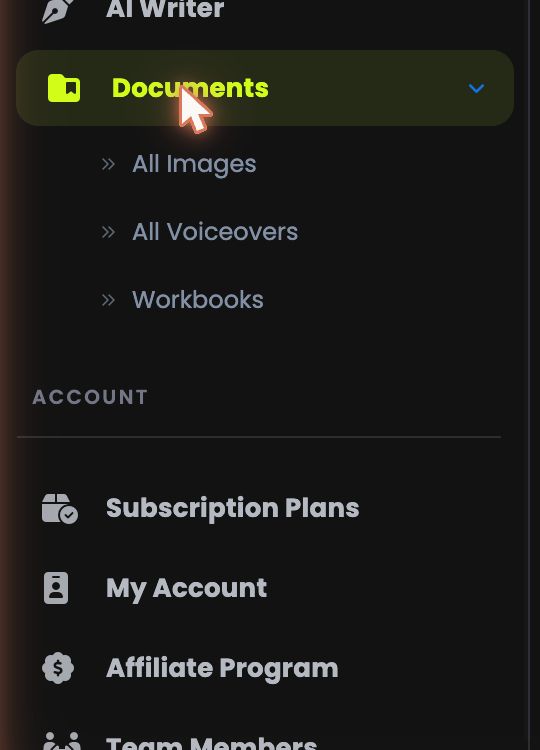
🖼️All Images
Every picture from AI Image and Photo Studio.
🔊All Voiceovers
Every audio file you've synthesized, with full details.
📁Workbooks
Your written documents, organised into folders.
02 All Images
One grid, everything you've generated.
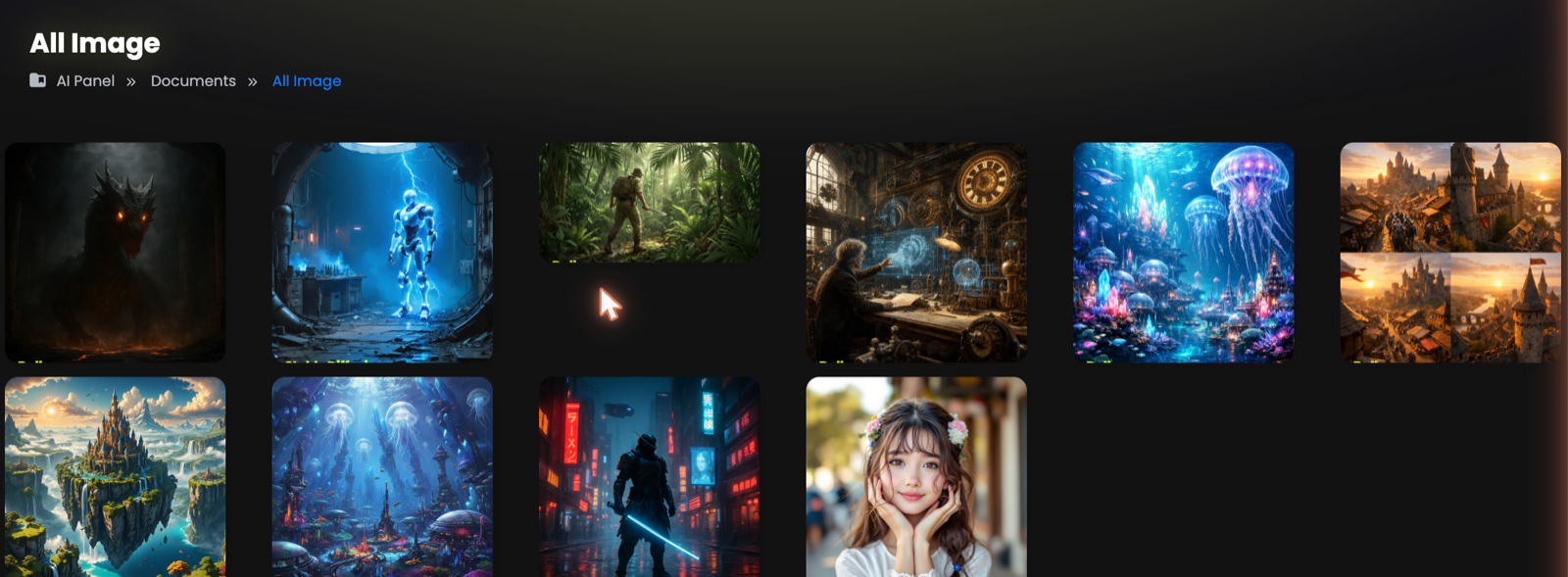
Open any image full size, download it again at full resolution, or delete the ones you don't need. Nothing here expires while you're generating — but see the FAQ about how long results are kept on each plan.
Keep your own copy of any image used commercially. It's free to do and means your finished work never depends on anything but your own files.
03 All Voiceovers
More useful than a folder of audio files — it's a full record.
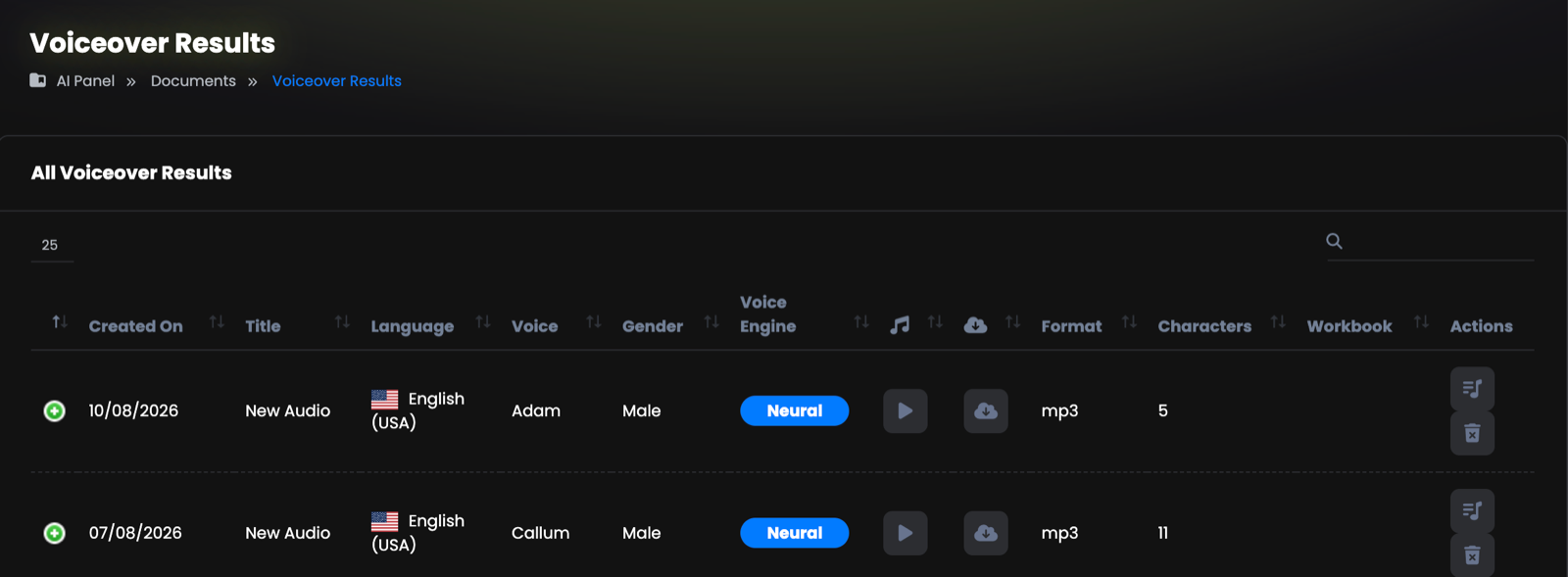
Each row records:
- Created On, Title — when you made it and what you called it
- Language, Voice, Gender, Voice Engine — the exact setup used
- Play and download buttons — listen in place or save the file
- Format and Characters — the file type and what it cost you
- Workbook — which project it belongs to
Three months later, when you need a new clip that matches an old video, the voice and language are recorded right here. Sort by date, find the original, match the settings.
04 Workbooks
Folders for your written work.
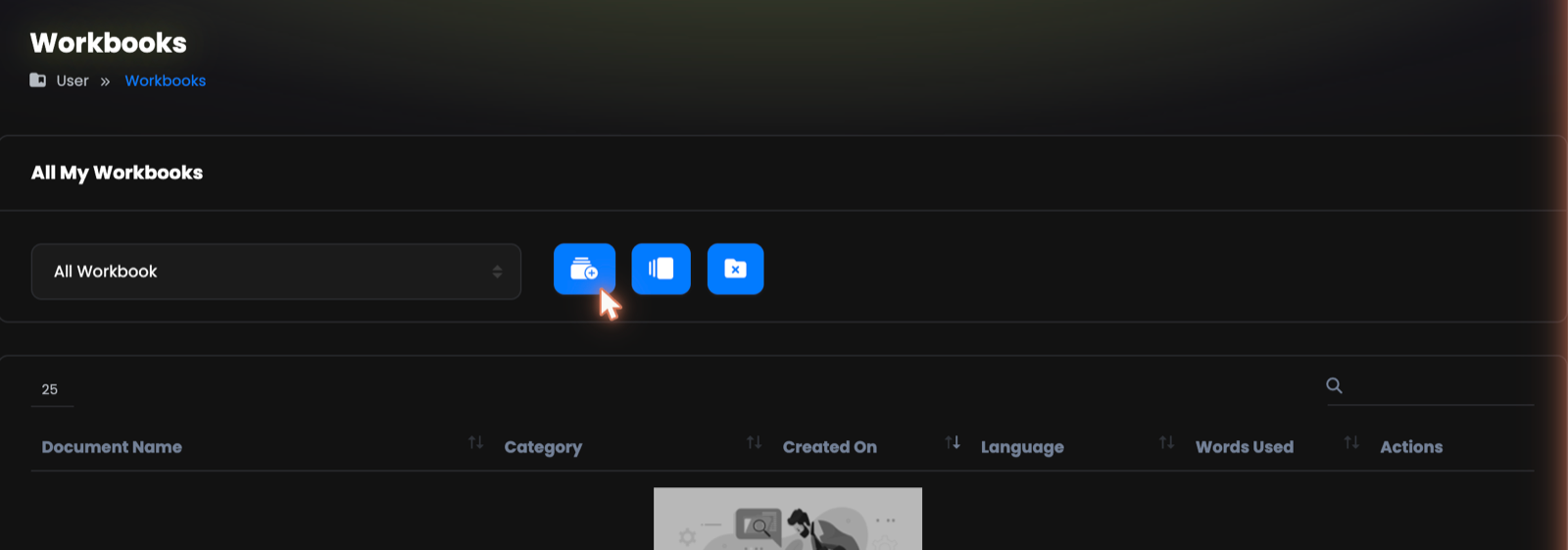
Everything from AI Writer lands here. Use the dropdown to switch between workbooks, and the buttons beside it to create and manage them. The table shows Document Name, Category, Created On, Language and Words Used — so you can see exactly what each piece cost.
Set this up on your first day. Retro-filing fifty documents is nobody's idea of a good afternoon.
05 The four credit types
The most useful thing in this guide. Read this section if you read nothing else.
QynTro doesn't have one balance — it has four, and each covers different tools. They're separate pools, so running low on one doesn't stop the others.
| Credit type | Powers |
|---|---|
| Word credits | AI Chat and AI Writer |
| Media credits | AI Image, AI Photo Studio, AI Video, AI Avatar Video, AI Music Studio |
| Characters | AI Voiceover |
| Minutes | Speech-to-text and transcription |
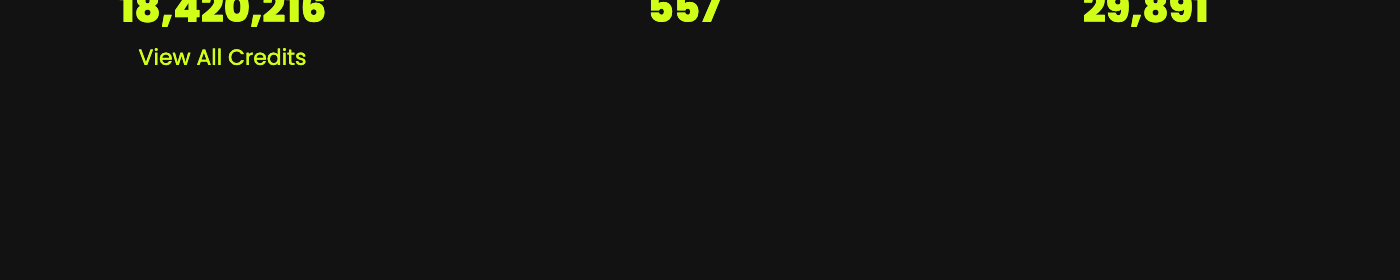
"I have thousands of credits left, so why can't I make a video?" — because those are word credits and video runs on media credits. Each tool page shows the balance that applies to it, right where you're working.
Every balance also appears in one place: View All Credits on the Subscription Plans page. Your allowances refill each month when your plan renews.
06 Subscription Plans
What you're on, what's left, and what happens next.
The page opens with your current plan, whether it's monthly or yearly, what it costs, and your remaining balances. If you've cancelled, it says so plainly and tells you the date your access ends — you keep everything until then.
- Upgrade when one credit type keeps running out before the month does.
- Top-up packs are the alternative when it's a one-off busy month rather than a permanent change.
- Cancelling doesn't cut you off immediately — access continues to the end of the paid period.
07 Payment history and invoices
Every payment, with a downloadable invoice.

Every payment on your account is listed with its date, plan, payment method, amount and status. Completed payments carry an invoice you can download — which is what your accountant will ask for.
08 My Account
Your details, your password, your security.
My Account holds your profile details, your email address and your password. Change your password from here, and keep your email current — it's where receipts, invoices and any account notices are sent.
Your account contains your work, your billing details and — if you've added them — your team. If two-factor authentication is available to you, turn it on.
09 Affiliate Program
The most-scrolled-past page in the whole dashboard.
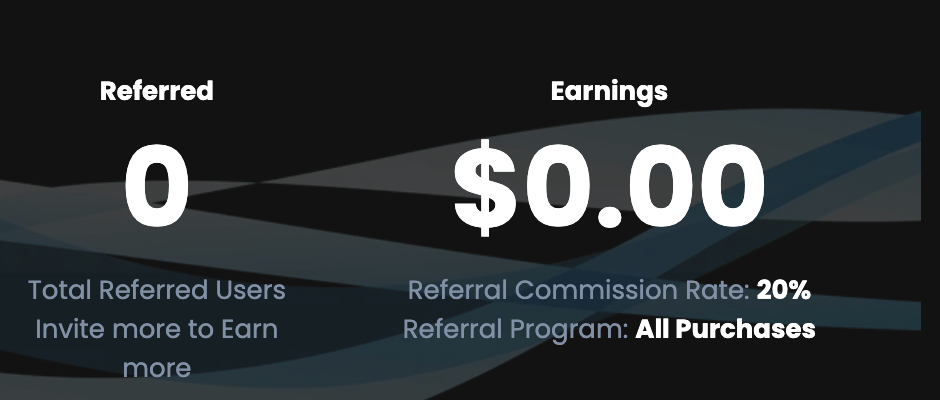
Share your referral link and you earn 20% commission on every purchase the people you refer ever make — not a one-off signup bounty, but a recurring share of every renewal, for as long as they stay.
Copy your referral link
It's at the top of the page with a copy button beside it.
Share it
Your audience, your clients, your newsletter, a video description.
Track it here
Referred users and total earnings update on this page.
Get paid
Set your payout details under Payout Request — PayPal or bank transfer — and request your commission when it clears.
Because commission is recurring on every payment, a handful of active referrals can cover your own subscription indefinitely. If you make content about AI tools, this is the page to open first.
10 Team Members
Bring your team in — one subscription, shared tools.
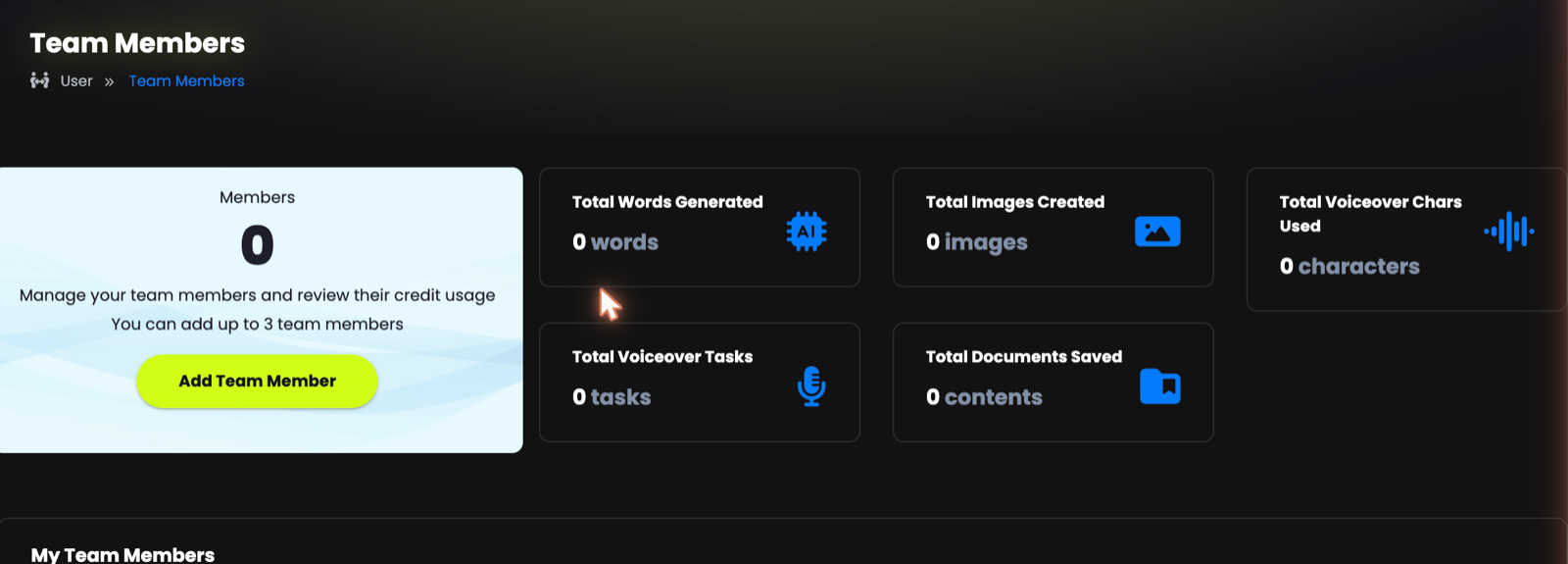
Add team members and they work inside your account, using your plan's tools and credits — no second subscription needed. The page shows how many you can add, and tracks what each person has used:
- Total Words Generated — chat and writing
- Total Images Created
- Total Voiceover Chars Used and Voiceover Tasks
- Total Documents Saved
The table below lists each member with their words, images and characters used, their status and when they were added.
Set this up on day one. Shared credits with per-person usage tracking means you can see who's producing what — and spot immediately if one person's experiments are consuming the month's allowance.
11 Troubleshooting & FAQ
The questions we're asked most.
I have credits left but a tool says I don't
You're looking at the wrong balance. There are four types — word, media, characters and minutes — and each covers different tools. Check View All Credits on the Subscription Plans page to see all four at once.
When do my credits refill?
Every month, when your plan renews. If you need more within a month, a top-up pack is faster than upgrading.
How long are my files kept?
Generated files are kept for a period that depends on your plan — higher plans keep them substantially longer. Download anything you'll need long term; that copy is yours permanently.
Where do I get an invoice?
Subscription Plans → Payment History. Completed payments have a Download link in the Invoice column.
What happens if I cancel?
You keep full access until the end of the period you've paid for — the page shows the exact date. Nothing is cut off the moment you cancel.
Do team members get their own credits?
They work from your plan's shared pool, and the Team Members page tracks what each person has used so you can see where the month went.
When do I get paid for referrals?
Commission accrues as your referrals pay, moves from Clearing to Available, and you request payout via PayPal or bank transfer from the Affiliate page.