Training Guide 12
AI Ebook Creator — describe a book, get the whole thing
Most AI writing tools give you an outline and leave the work to you. This one writes the finished book — a plan, then every chapter in full, illustrated and typeset into a PDF you can sell, plus the Kindle and paperback files Amazon KDP asks for at upload. And when it is done, you can review and edit every word, swap the pictures, and rebuild the files as often as you like, with no extra cost.
01 What it actually makes
Four deliverables, not one document.
This is the part worth understanding before you start, because it is what separates this from every "AI book writer" you have tried. You do not get a Word file to reformat. You get a publishable package.
The book as a PDF
Typeset with a cover, a contents page and the pictures in place. Ready to sell as it is.
Kindle EPUB + store cover
The format KDP recommends, with a clickable contents page and a 1600 × 2560 cover for the listing.
Print-ready paperback
Interior at your trim size with KDP margins and real page numbers, plus a full-wrap cover.
A KDP upload checklist
Every figure Amazon asks for during upload — trim, margins, spine width, page count — worked out for your book.
02 The screen, explained
One brief, five settings, one button.
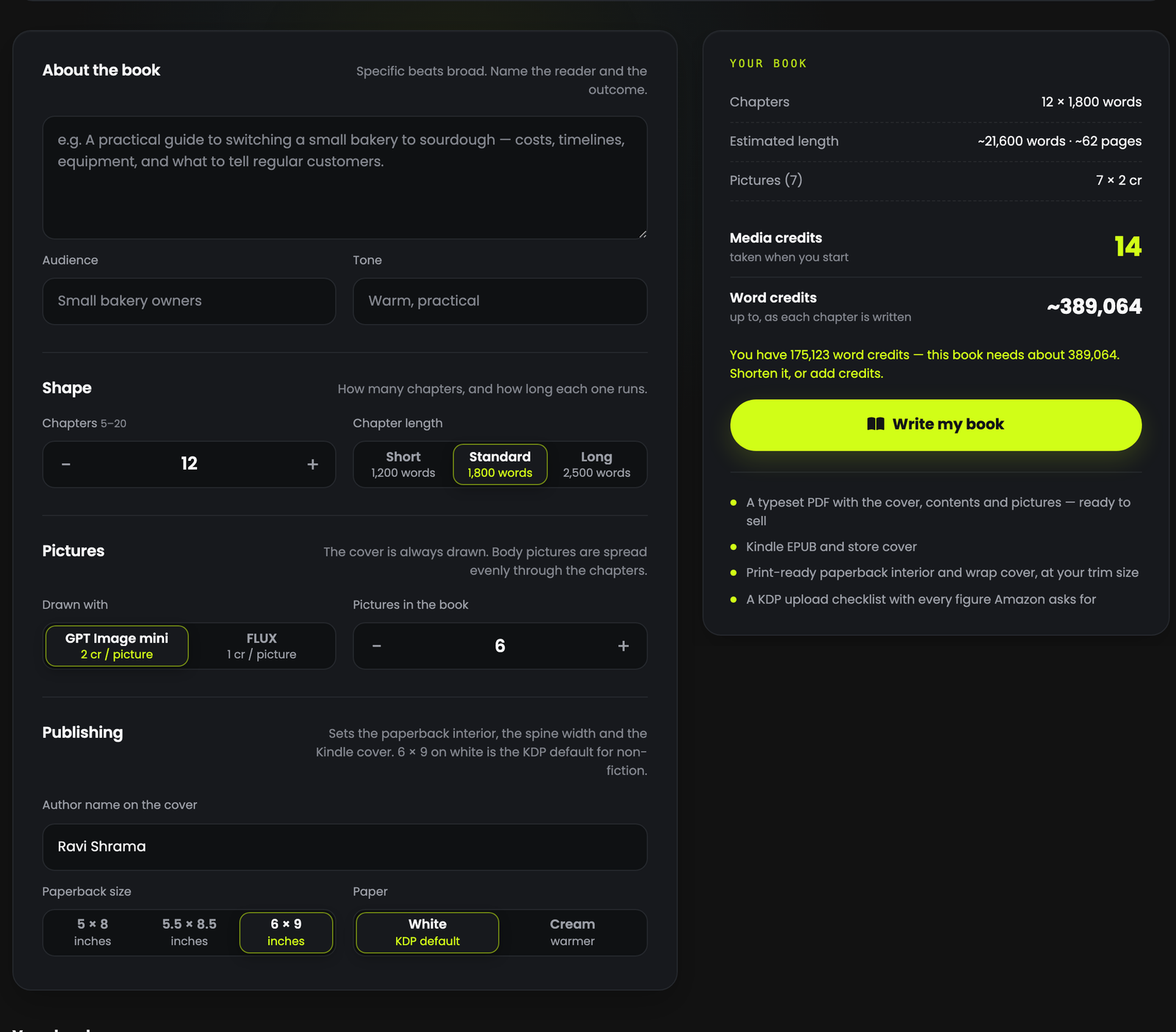
The header tells you what is about to happen: 01 OUTLINE · 02 WRITE · 03 ILLUSTRATE · 04 TYPESET. Those four stages run in order, unattended, after you press the button.
About the book
Four fields on the left: the brief, the audience, the tone, and the author name for the cover.
Shape
How many chapters, and how long each one runs.
Pictures
Which model draws them, and how many go in the body.
Publishing
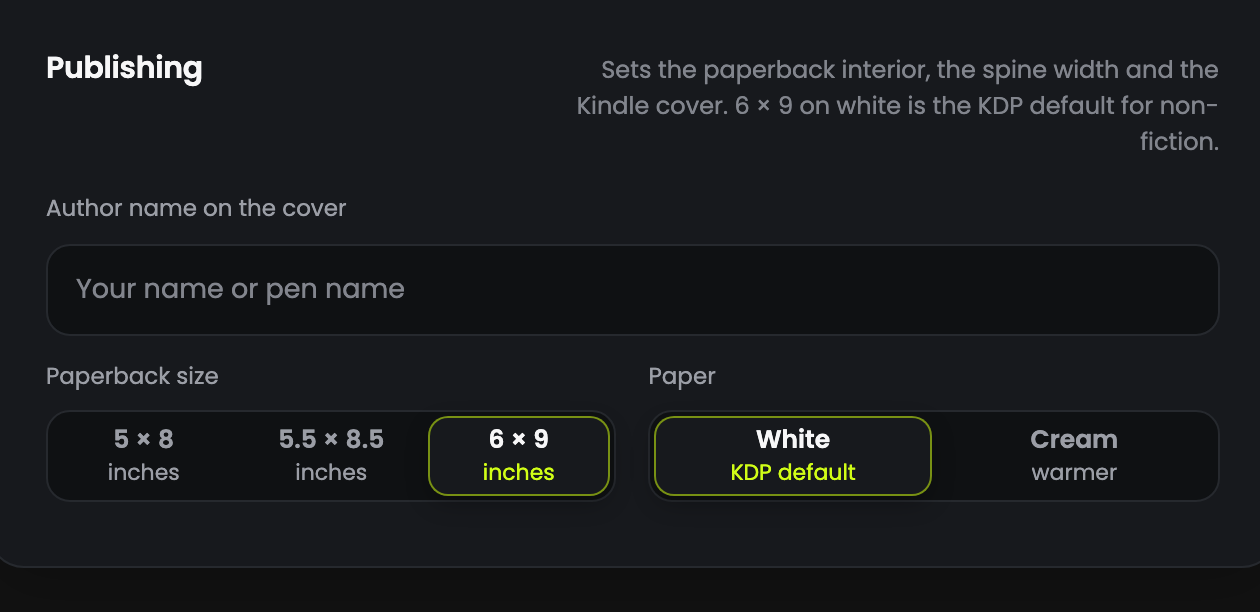
Paperback trim size and paper colour.
YOUR BOOK — the panel on the right
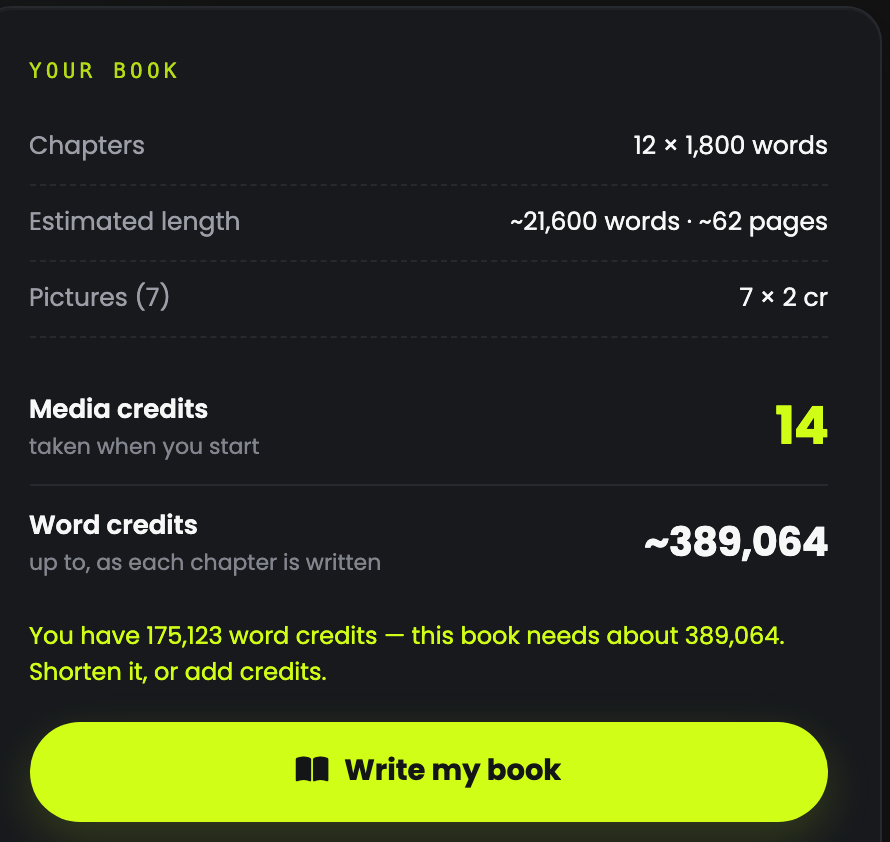
Live totals: chapters, estimated words and pages, picture count, and exactly what it will cost in both credit types. It updates as you change anything. This is the part to read before you commit.
03 Step 1 — Describe the book
The single field that decides whether the book is any good.
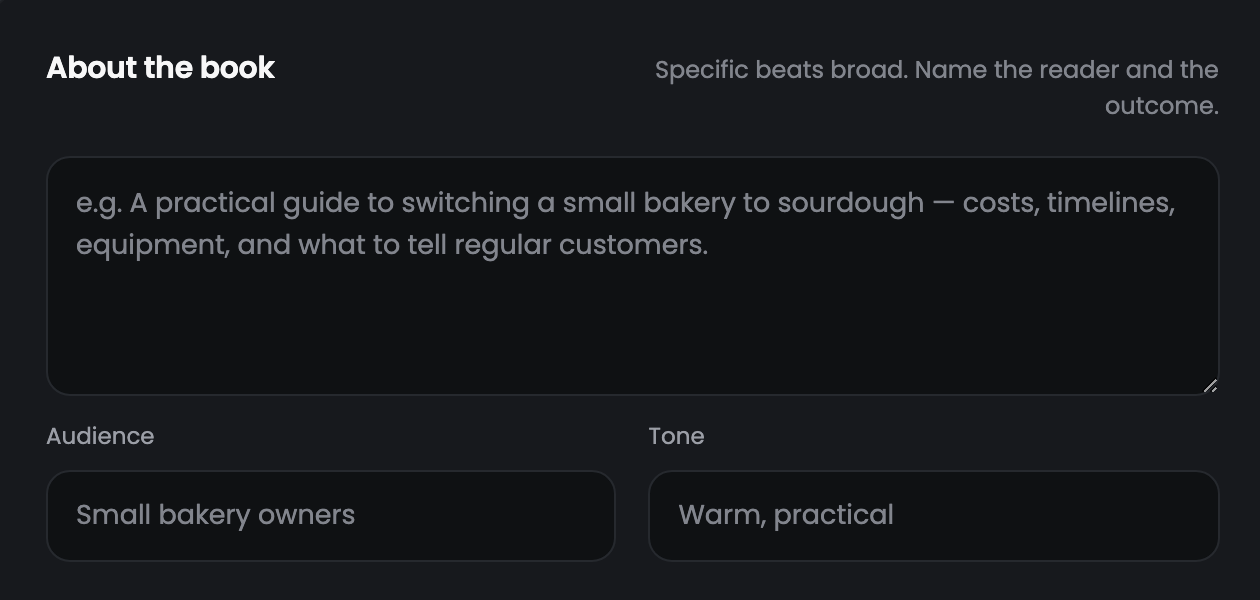
The guidance on screen is "Name the reader and the outcome", and it is the whole craft of this tool in five words. A vague brief produces a vague book, and no amount of chapters fixes that.
Too broad
"A book about sourdough."
Who is reading it? What can they do afterwards that they could not before? The model has to invent both, and it will invent something generic.
Specific
"A practical guide to switching a small bakery to sourdough — costs, timelines, equipment, and what to tell regular customers."
A named reader, a named outcome, and four things the book must cover.
| Field | What it does |
|---|---|
| About the book | The brief. Up to 1,000 characters, and the single biggest lever on quality. |
| Audience | Who it is written for — e.g. Small bakery owners. Sets the assumed knowledge and the examples. |
| Tone | How it reads — e.g. Warm, practical. Two or three words is enough. |
| Author name on the cover | Your name or a pen name. It is printed on the cover, so spell it the way you want it to appear on Amazon. |
Name the reader
"A small bakery owner", "a first-year teacher", "someone moving from Excel to Power BI". Not "beginners".
Name the outcome
What can they do on the last page that they could not on the first?
List what it must cover
Three or four specifics. These become the backbone of the chapter plan.
Say what to leave out
Optional, but it stops the book drifting into territory you did not want.
04 Step 2 — Chapters & length
Together these decide the size of the book.
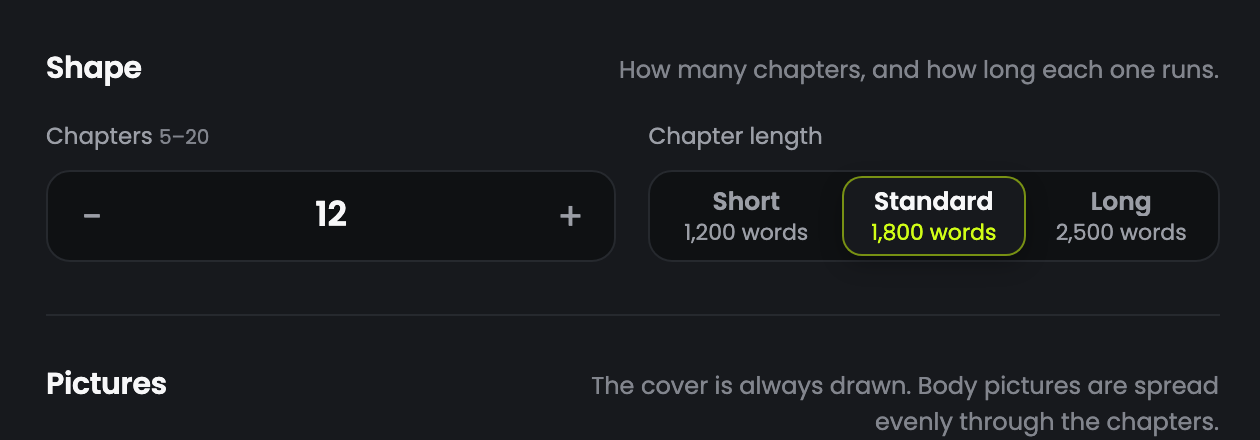
| Setting | Options |
|---|---|
| Chapters | 5 to 20, set with the − / + stepper |
| Chapter length | Short — 1,200 words · Standard — 1,800 words · Long — 2,500 words |
The two multiply, so the range is wide:
| Short (1,200) | Standard (1,800) | Long (2,500) | |
|---|---|---|---|
| 5 chapters | 6,000 words | 9,000 words | 12,500 words |
| 10 chapters | 12,000 words | 18,000 words | 25,000 words |
| 15 chapters | 18,000 words | 27,000 words | 37,500 words |
| 20 chapters | 24,000 words | 36,000 words | 50,000 words |
05 Step 3 — The pictures
Two models. They are not interchangeable.
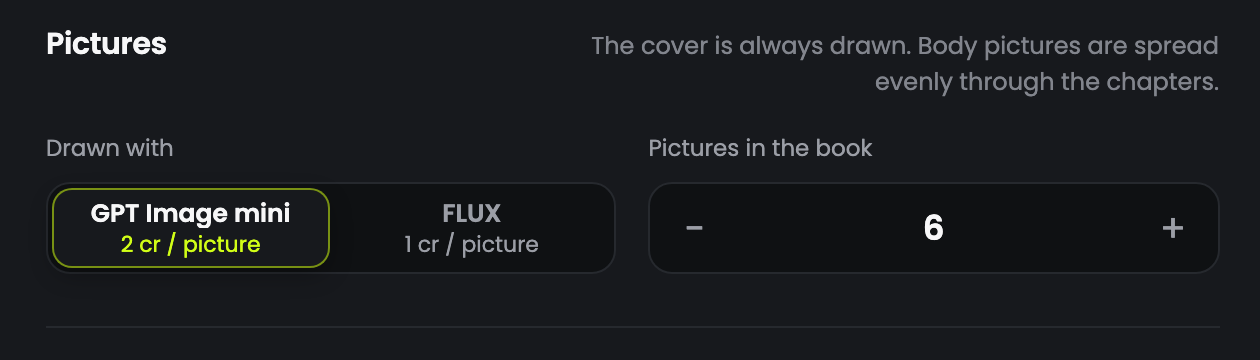
| Model | Cost | Reach for it when |
|---|---|---|
| GPT Image mini | 2 media credits per picture | The pictures need to carry meaning — diagrams, labelled scenes, anything where the subject has to be recognisably the thing you described. |
| FLUX | 1 media credit per picture | You want atmosphere and style — chapter openers, mood pieces, decorative plates. Half the price. |
The images are generated during the build and typeset into the book in place, so you are never dropping pictures into a document afterwards.
06 Step 4 — Trim size & paper
These two only affect the paperback, and they are hard to change later.
| Trim size | Conventionally used for |
|---|---|
| 5 × 8 in | Pocketable non-fiction and short guides. Fewer words per page, so a higher page count. |
| 5.5 × 8.5 in | The middle ground, and a safe default for most how-to books. |
| 6 × 9 in | Business, technical and reference books. Most words per page, and the most room for figures. |
Author name on the cover
Set in this section, and printed on the cover. Use the name you want on the Amazon listing.
Paper: White
Higher contrast. Better for books with illustrations, diagrams or code.
Paper: Cream
Softer and easier on the eye over long stretches of unbroken text. The usual choice for narrative.
07 What a book costs
A book is the largest job on the platform. Read this before your first one.
A book draws on two different balances, and they behave differently:
| Credit | Pays for | When it is taken |
|---|---|---|
| Media credits | The pictures, cover included | Up front, when you start |
| Word credits | The writing | As each chapter is written — the figure shown is the ceiling |
What that works out at
Measured from the tool itself, at 6 body pictures plus the cover:
| Book | Words | Pages | Word credits | Media credits |
|---|---|---|---|---|
| 5 chapters × Short | 6,000 | ~17 | ~119,000 | 14 · or 7 on FLUX |
| 10 chapters × Standard | 18,000 | ~51 | ~327,000 | 14 · or 7 on FLUX |
| 12 chapters × Standard | 21,600 | ~62 | ~389,000 | 14 · or 7 on FLUX |
| 20 chapters × Long | 50,000 | ~143 | ~880,000 | 14 · or 7 on FLUX |
If the panel says you are short
It tells you plainly — "you have X, this book needs about Y. Shorten it, or add credits." Reduce the chapters or the chapter length and watch the figure fall, or top up.
Cheapest way to test the tool
5 chapters × Short on FLUX. Around 119,000 word credits and 7 media credits for a real, complete, sellable 17-page book.
Switching to FLUX halves the picture cost
2 credits per picture becomes 1. It makes no difference to the writing.
Roughly 350 words to a page
Useful when you are aiming at a page count rather than a word count — a 100-page paperback is about 35,000 words.
08 Step 5 — Write my book
The longest job in QynTro. Start it and walk away.
Read the YOUR BOOK panel one more time
Words, pages and both credit costs are all there before you press anything.
Press Write my book
The plan is made first, then the chapters are written in order, then the pictures are drawn, then the whole thing is typeset and packaged.
Do not sit and watch
The build runs on our servers, not in your browser. Close the tab, come back later, and the files will be waiting.
09 Your four files
And what each one is for.
| File | Use it for |
|---|---|
| Book PDF | Selling directly — your own site, a Gumroad listing, a lead magnet, a client deliverable. Nothing else needed. |
| Kindle EPUB | The Kindle edition on KDP. Has a clickable contents page, which Amazon expects. |
| Store cover (1600 × 2560) | The cover image on the Amazon listing itself — the thumbnail shoppers see. |
| Paperback interior + wrap cover | The print edition. Interior is set at your trim size with KDP margins; the cover wraps front, spine and back at the measured spine width. |
| KDP checklist | The numbers to type into the KDP upload form. Keep it open while you publish. |
10 Review & edit your book
Change anything, any time, then rebuild the files for free.
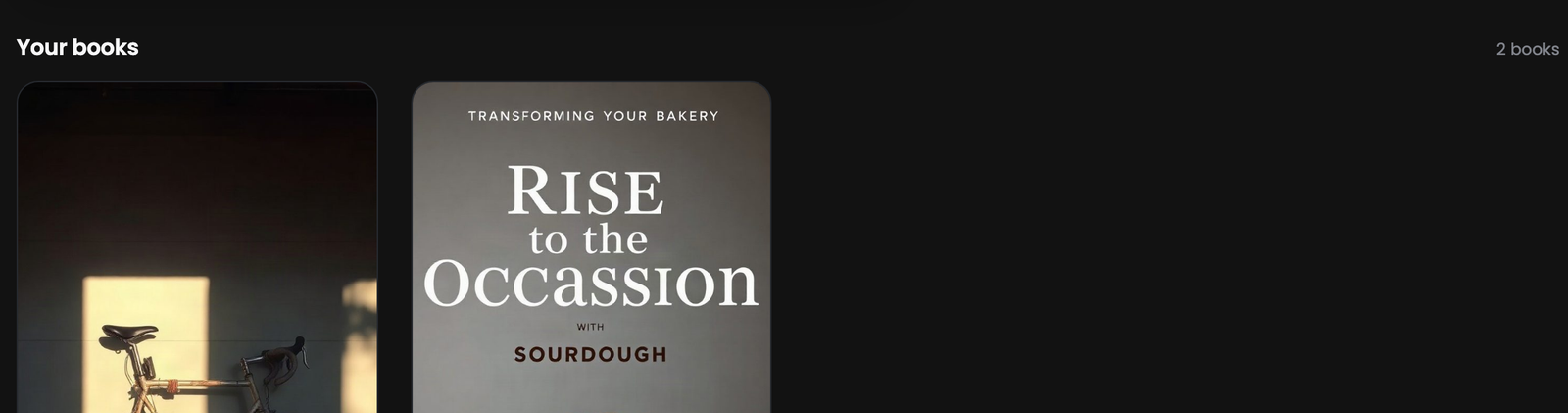
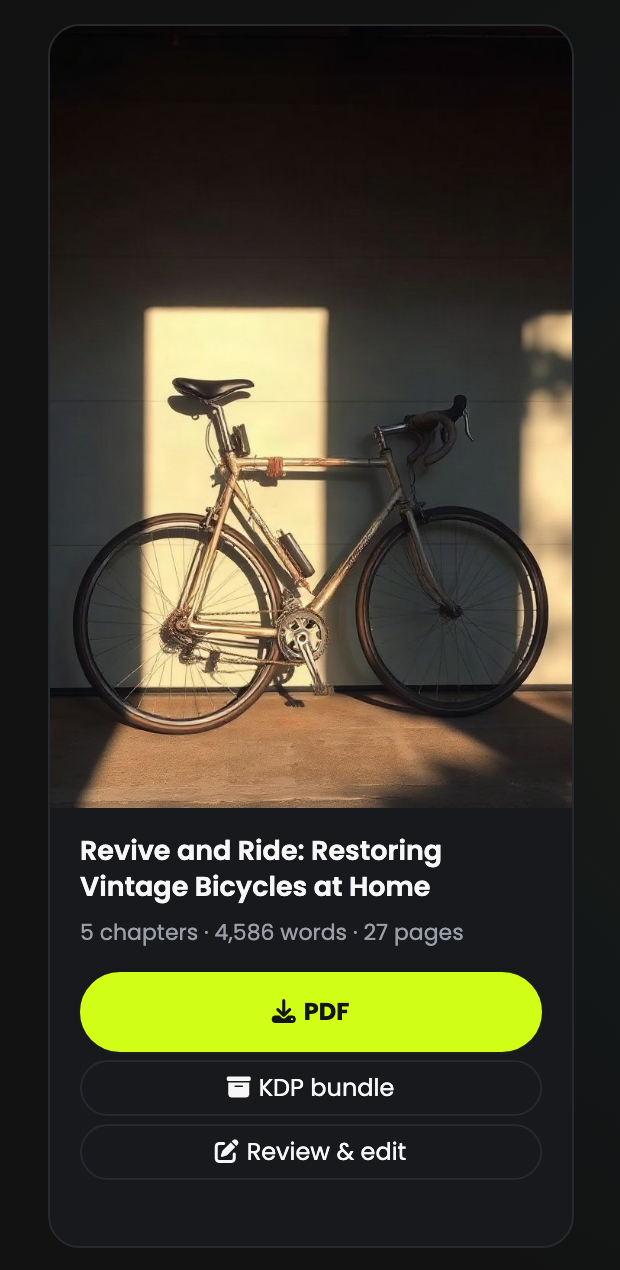
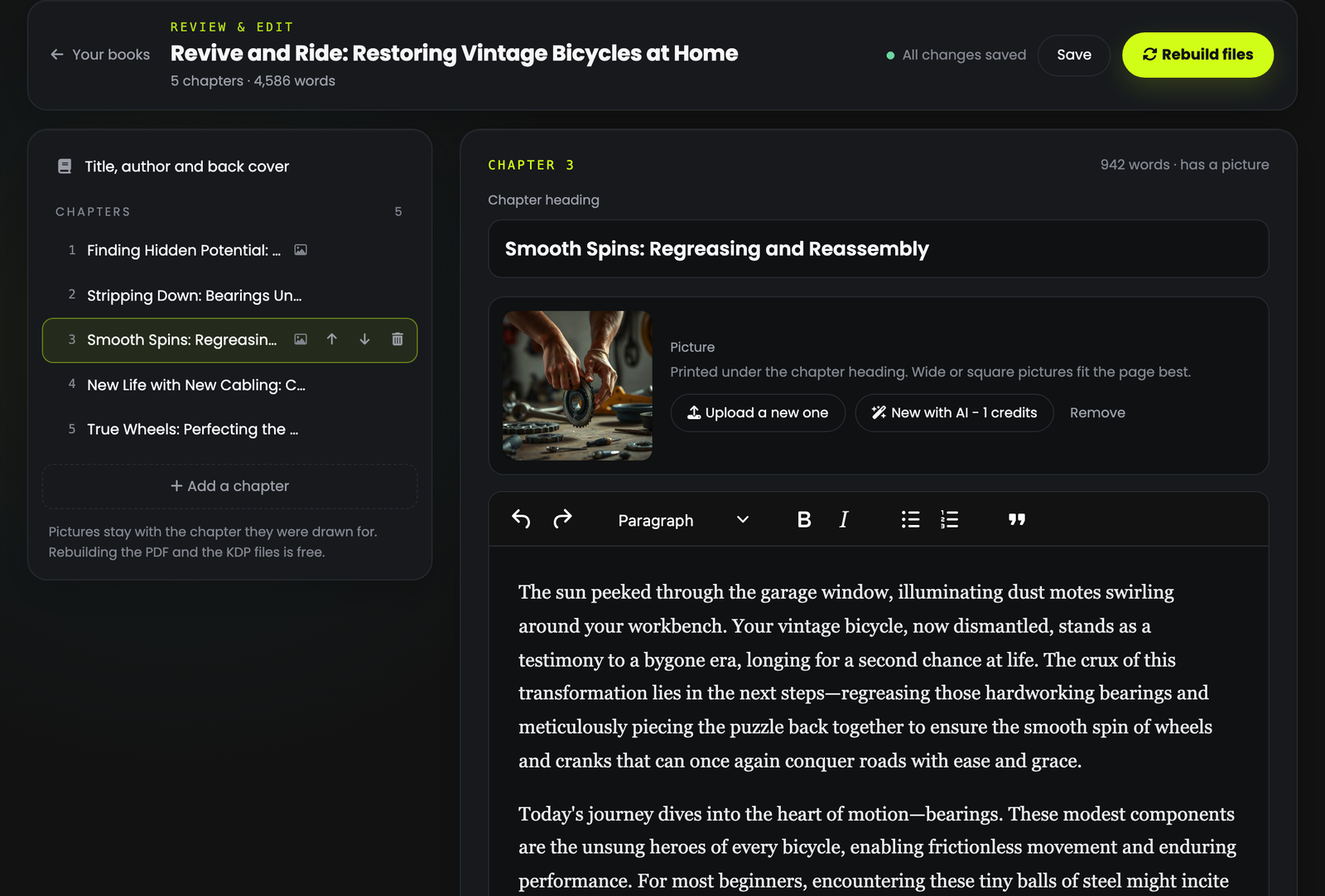
A finished book is a first draft you own, not a locked file. Every book in your list has a Review & edit button. It opens the whole book in an editor. Fix a sentence, rewrite a chapter, change the order, update the title or back-cover text, or swap a picture. When you are happy, press Rebuild files and the PDF and KDP bundle are typeset again with your changes.
| What you can change | How | Cost |
|---|---|---|
| Chapter text | Click a chapter and edit in place. Paragraphs, subheadings, bold, italics, bullet and numbered lists, and quotes. | Free |
| Chapter headings | The Chapter heading field above the text. | Free |
| Chapter order | The up and down arrows on a chapter in the list. Its picture moves with it. | Free |
| Add or delete chapters | Add a chapter inserts a blank one after the chapter you are on, for you to write. The bin icon deletes a chapter, with its picture. Up to 40 chapters. | Free |
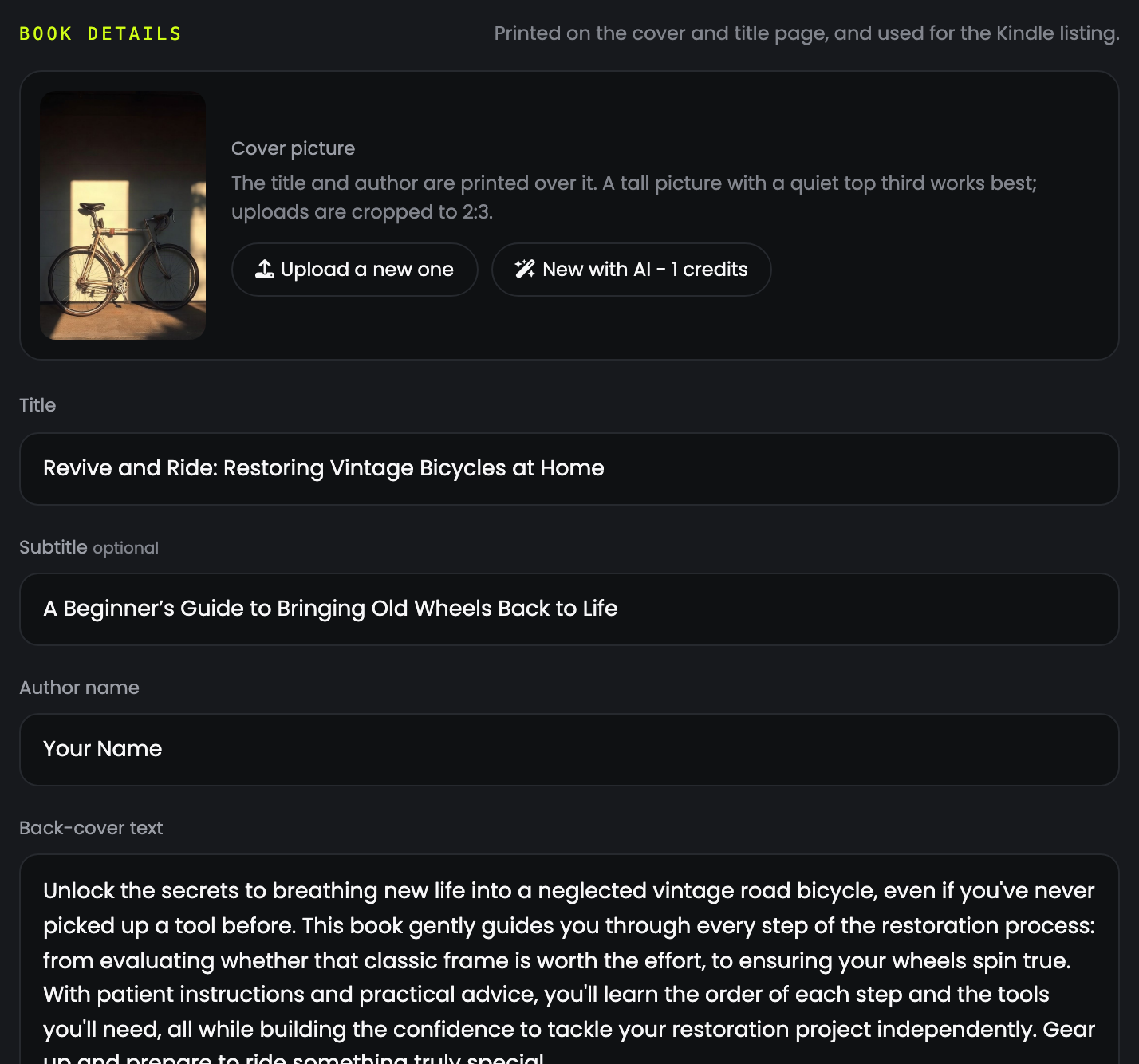
| Title, subtitle, author, back cover | Title, author and back cover at the top of the list. | Free |
| Upload your own picture | Upload on the cover or any chapter. JPG, PNG or WebP, up to 12 MB. | Free |
| Remove a chapter picture | Remove. The chapter keeps its text. | Free |
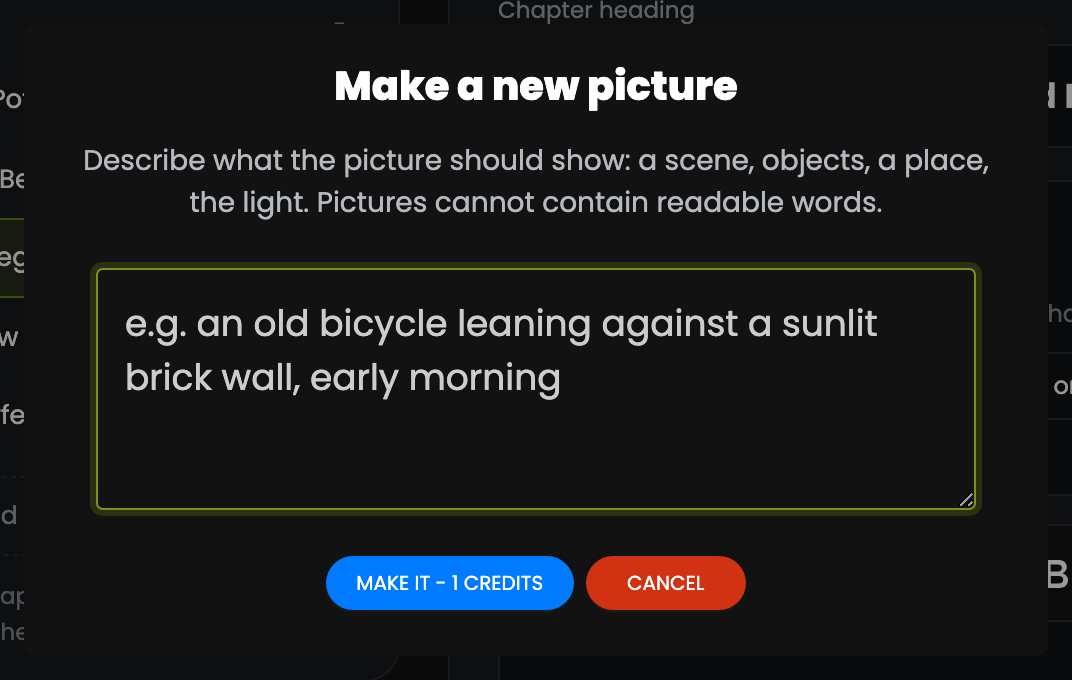
| New picture with AI | New with AI. Describe the scene and it draws a new one. | The book's picture price: 1 media credit on FLUX, 2 on GPT Image mini. Charged only if the picture arrives. |
| Rebuild the PDF and KDP bundle | Rebuild files, as many times as you like. | Free |
Editing the text
Pick a chapter
Click it in the list on the left. Its heading, picture and text open on the right, with a live word count.
Edit like any document
The toolbar has exactly what the book is typeset from: Paragraph or Subheading, bold, italics, lists and quotes. Anything pasted from elsewhere is cleaned: fonts, colours, links and embedded images are removed so the book stays consistent.
It saves itself
A few seconds after you stop typing, the status at the top changes from Unsaved changes to All changes saved. You can also press Save, or Cmd/Ctrl + S.
Changing the pictures
| Picture | Works best | Uploads |
|---|---|---|
| Cover | A tall picture with a quiet top third. The title and author are printed over it. | Cropped to 2:3. At least 900 px on the shorter side. |
| Chapter | Wide or square. Printed under the chapter heading. | Fitted between wide (16:9) and slightly tall (5:6). At least 500 px on the shorter side. |
Rebuilding your files

Your downloads do not change until you rebuild
Edits are saved to the book straight away, but the PDF and KDP bundle stay as they were. The editor reminds you, and the book list shows Edits not in files yet.
Press Rebuild files
Your changes are saved, then the PDF and the whole KDP bundle (EPUB, store cover, paperback interior, wrap cover and checklist) are typeset again. It takes a minute or two and uses no credits.
The editor is locked while it runs
So nothing is half included. When the banner says it is done, download the new files.
11 Publishing on Amazon KDP
Which file goes where.
Read it in the editor first
Open Review & edit, read the book through, fix anything you would not put your name to, then Rebuild files. It is free, and it is the version you should upload.
Create the Kindle edition first
Upload the EPUB as the manuscript and the 1600 × 2560 cover as the cover image. The Kindle edition is the easier of the two and gets you listed.
Then add the paperback
Choose the same trim size you picked in QynTro. Upload the paperback interior as the manuscript and the wrap cover as the cover.
Use the checklist for the numbers
Trim, margins, spine width and page count are the fields people get wrong. They are all worked out for you.
Read Amazon's previewer output
KDP runs its own print previewer. Look at it before you approve — it is the last chance to catch anything.
12 Troubleshooting & FAQ
How long is the finished book?
Chapters × chapter length. That runs from 6,000 words (5 × Short) to 50,000 (20 × Long). The estimate on screen shows the exact figure and the rough page count as you change the settings.
Can I edit it afterwards?
Yes, any time. Press Review & edit on the book to change the text, headings, chapter order, title, back cover and pictures, then Rebuild files. Editing and rebuilding are free. Only a new AI picture costs media credits. See Review & edit your book.
I edited the book but my download has not changed
Edits reach the files only when you press Rebuild files. Until then the book list shows Edits not in files yet.
Some characters were refused when I saved
The book's font prints Latin, Greek and Cyrillic scripts. Emoji and other scripts would print as empty boxes, so the editor will not save them.
Can I sell what it produces?
Yes. Content generated on a paid plan is yours to use commercially, including selling it. You are responsible for making sure the finished book is appropriate for sale.
Why does the paperback cover only appear at the end?
Because the spine width depends on the final page count, which is not known until the book is written and typeset.
Can I change the trim size after building?
Not on a finished book, because margins and spine are calculated from it. The editor changes the content, not the trim size. Build again with the new size.
Which picture model should I pick?
GPT Image mini when the illustration has to depict something specific; FLUX when you want mood and style.
It is taking a long time
A full book is the largest job on the platform — a plan, up to fifty thousand words, a set of illustrations and four packaged files. Leave the page; it finishes on our servers.
Do I need a KDP account to use this?
No. The PDF is sellable on its own. The Kindle and paperback files are there for when you want Amazon.